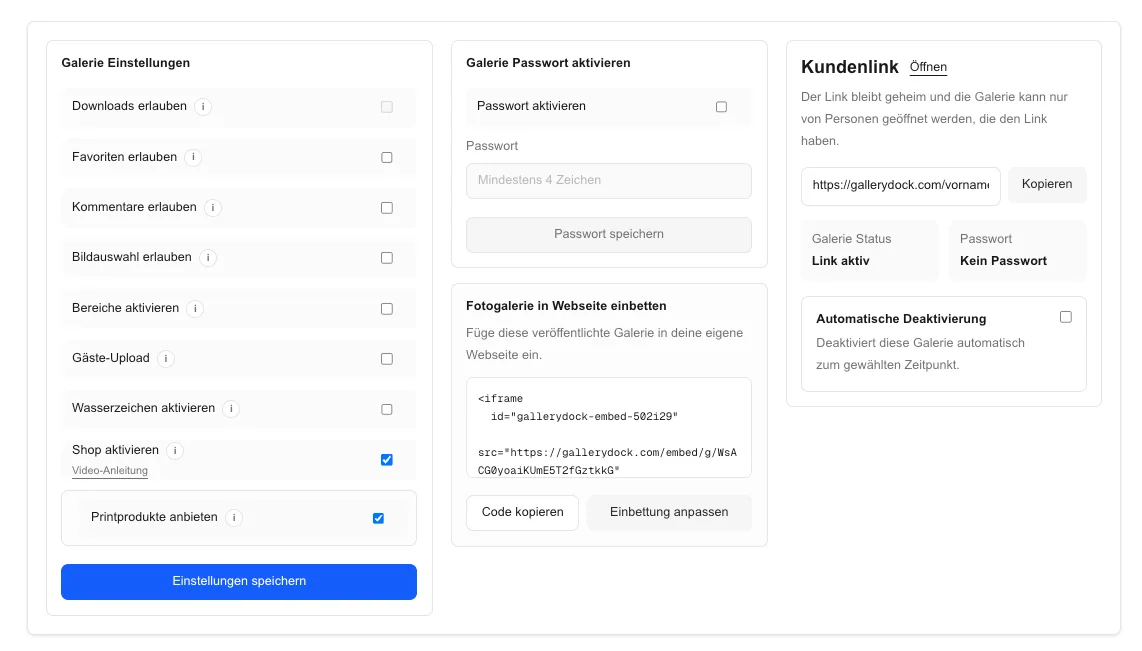
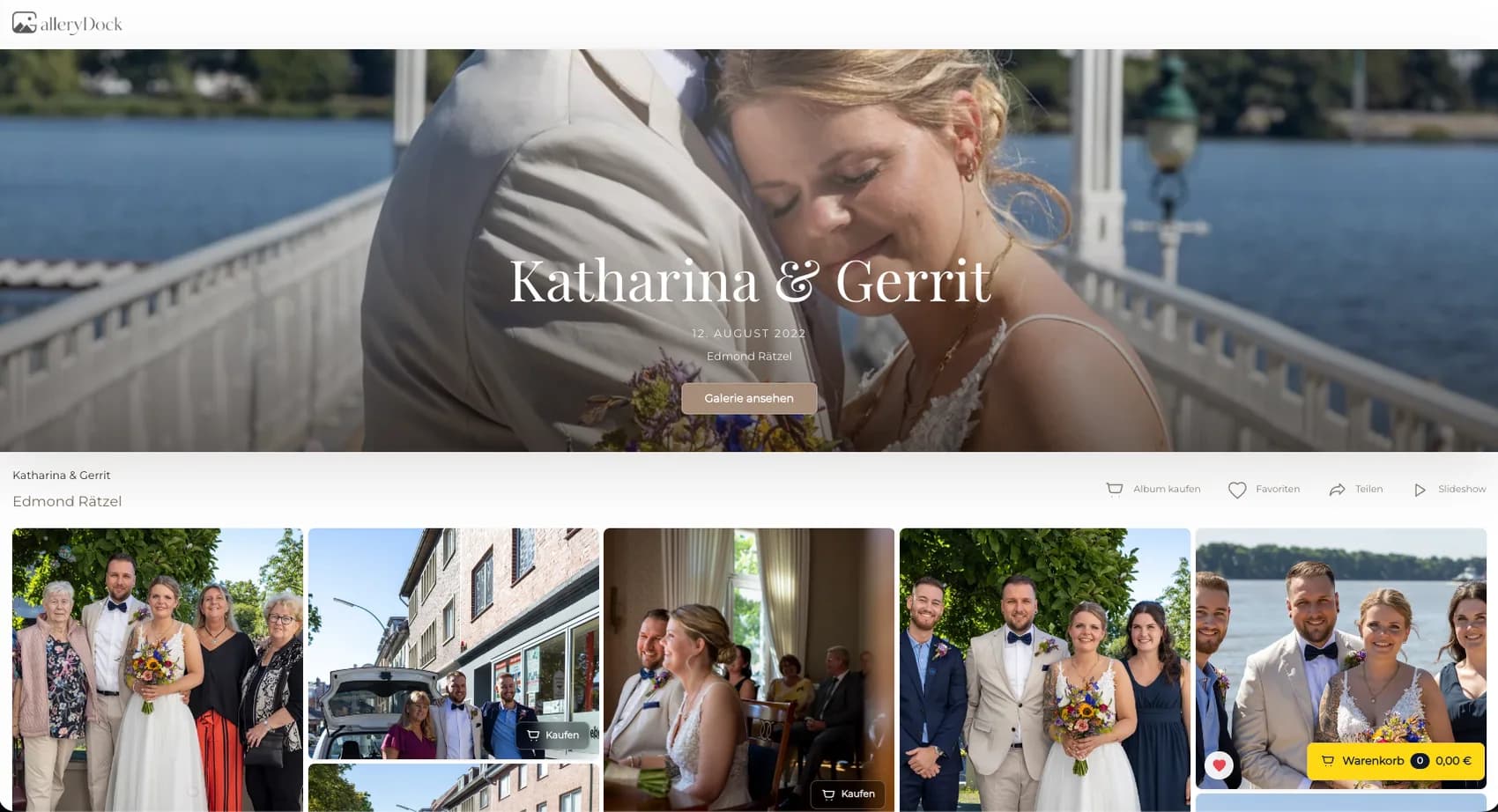
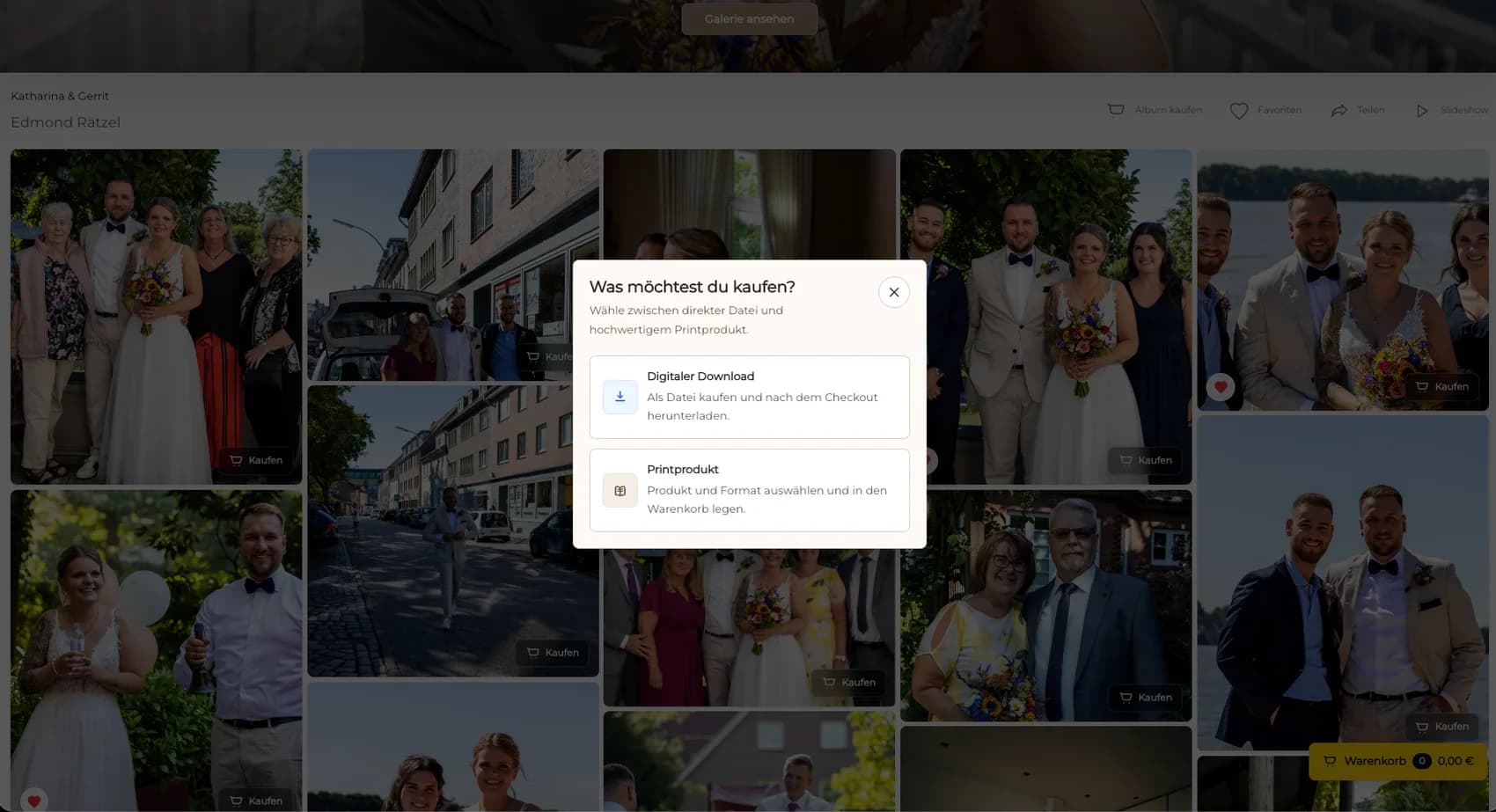
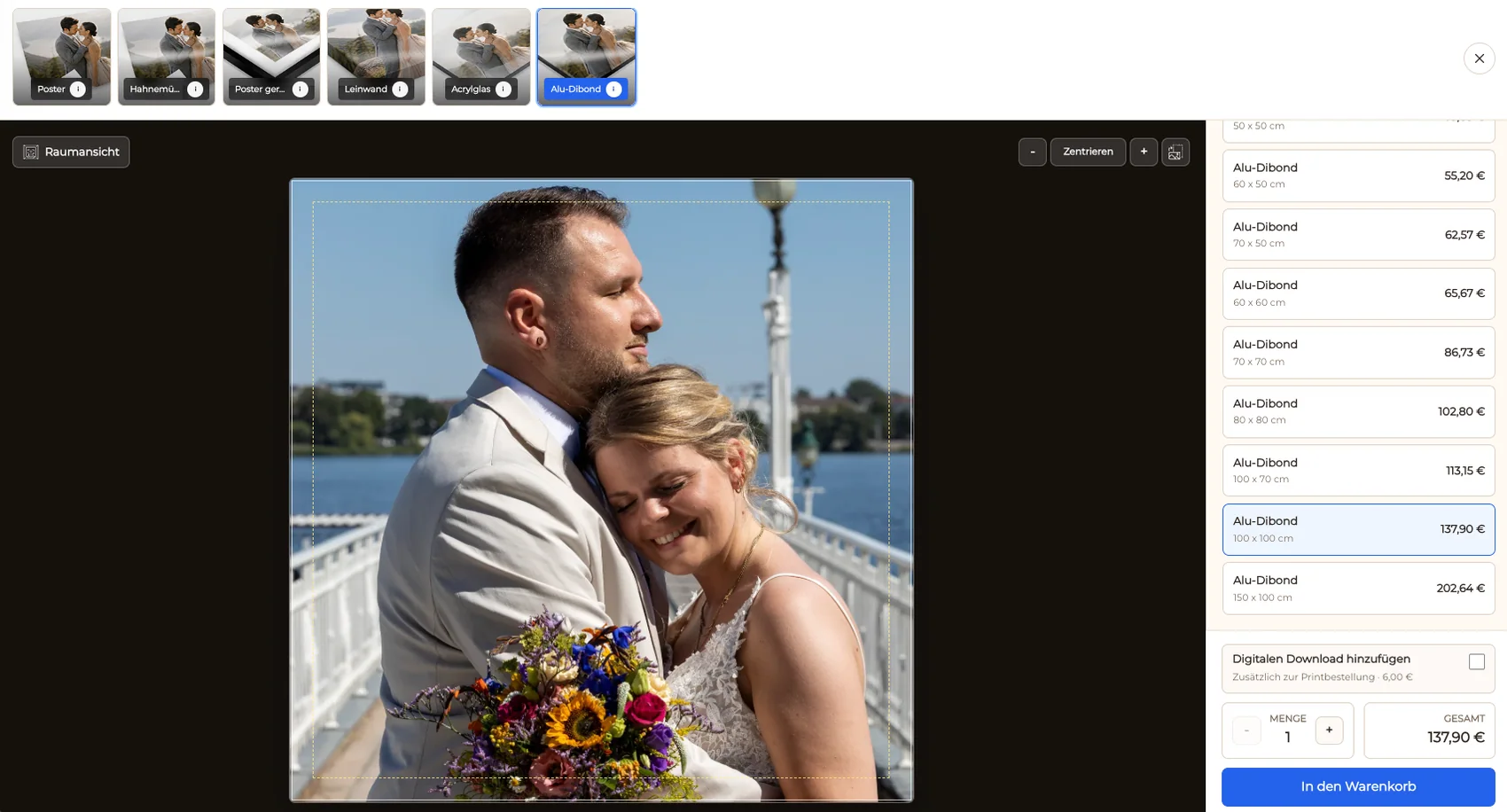
A watermarked client gallery can discourage casual preview reuse while still giving clients a clear path from image selection to a digital purchase or physical print order. The practical goal is an order journey where the protected preview remains connected to the selected image, product, size, crop, price, cart, and checkout. Start with one real client project and define what the reviewer, buyer, or visitor must understand before opening the link. Then prepare the material, choose access and permissions deliberately, and test the public experience on both a desktop and a phone. GalleryDock keeps the shared work, contextual decisions, delivery, and—where the offer includes them—digital sales and physical print sales in one understandable path. The photographer or filmmaker remains responsible for the source material, client communication, permissions, product configuration, and professional or legal decisions outside the software. A watermark is a visual deterrent, not DRM, screenshot prevention, identity tracking, or a guarantee against unauthorized reuse; GalleryDock also does not promise every product or fulfillment option in every configuration.
Prepare
Define the job before you share watermarked gallery print sales
Check watermark readability on light and dark areas, confirm that it does not block the decision-critical subject, and inspect every offered print crop and safe area. A short preparation step prevents the client from guessing what the current version is for or what kind of response is useful.
01
Choose one real client case
Use a current assignment with a clear decision instead of a generic demo. A watermarked client gallery can discourage casual preview reuse while still giving clients a clear path from image selection to a digital purchase or physical print order. Write down who needs access, what they should decide, and what happens after their response.
02
Prepare only the intended material
Check names, versions, crops, permissions, product choices, and visible details before publishing. Remove ambiguity from the presentation rather than asking the client to identify the correct item for you.
03
Set a concrete review or buying brief
Tell the client what to evaluate: check watermark readability on light and dark areas, confirm that it does not block the decision-critical subject, and inspect every offered print crop and safe area. A precise brief separates useful decisions from general reactions and keeps the next production step predictable.
04
Decide access before sending
Choose the private link, optional password, visible products, download permission, or embed location that fits the assignment. Access controls and workflow choices should be intentional, not defaults nobody reviewed.
Guide
Give the client one understandable path
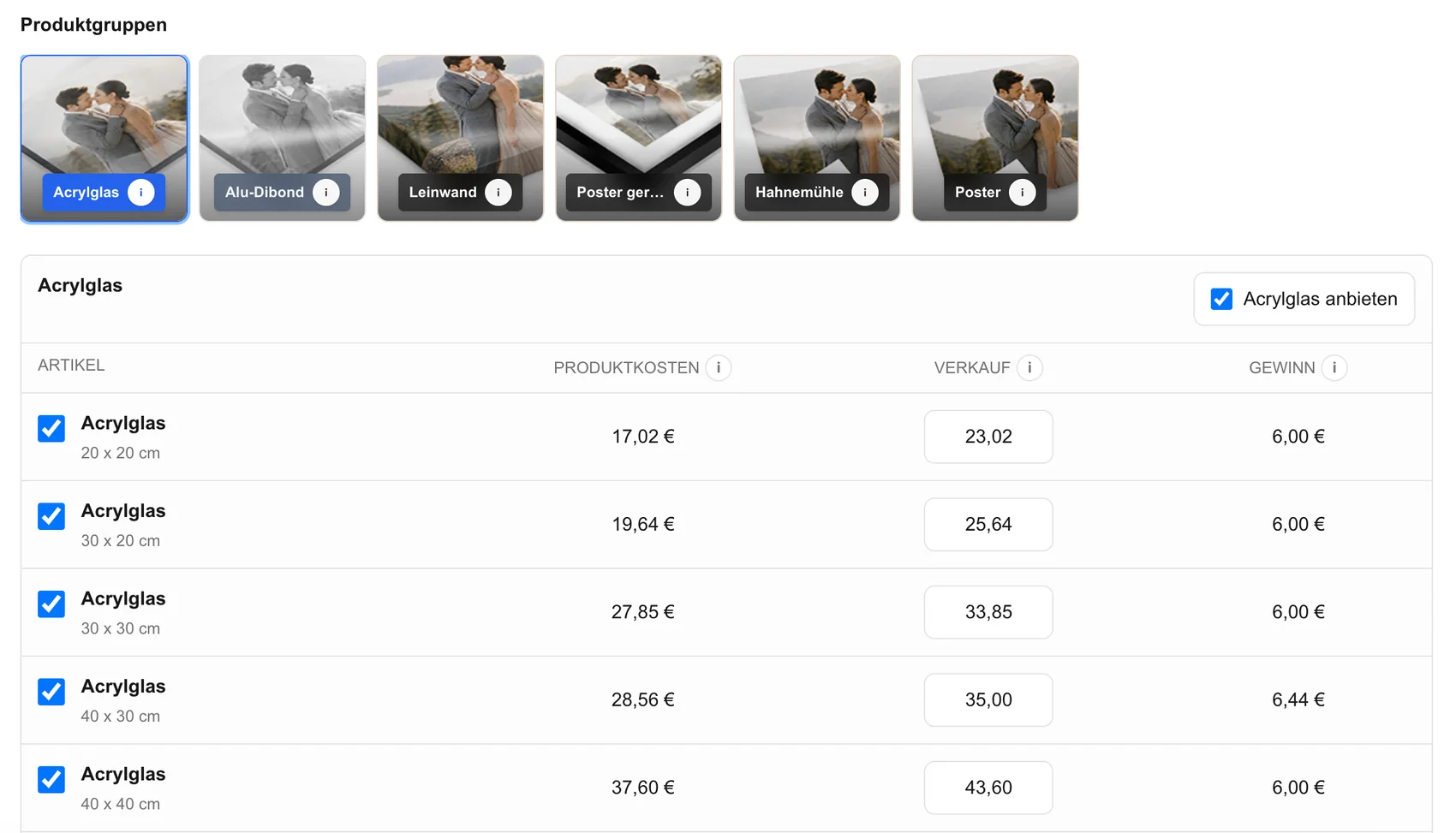
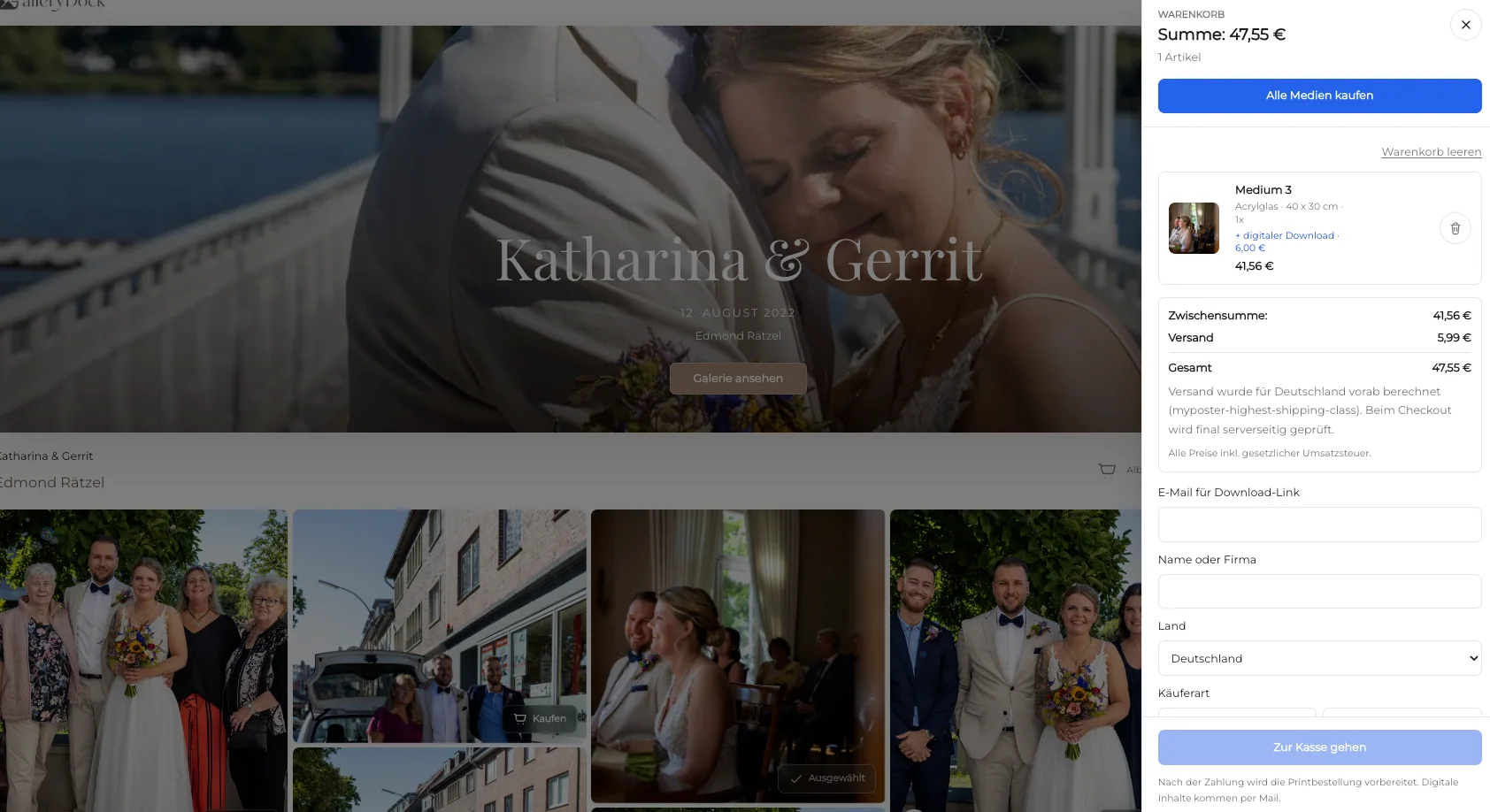
Publish the prepared preview set, enable only intended digital and physical products, verify sizes and prices, test the crop preview, and complete the visitor path through cart and checkout without purchasing. Keep instructions close to the actual gallery or review experience so the client does not need a separate manual.
01
Open the same view the client receives
Test the public link in a signed-out browser and on a phone. Confirm that the title, version, access step, media, and primary action are immediately understandable without owner-only context.
02
Keep every decision in context
Use the relevant image, scene, product, access screen, or page section as the anchor. an order journey where the protected preview remains connected to the selected image, product, size, crop, price, cart, and checkout Context reduces follow-up messages and protects the meaning of the original request.
03
Separate optional actions clearly
Favorites, comments, downloads, digital purchases, physical print purchases, and final approval are different actions. Label them clearly rather than implying that one click performs all of them.
04
Make the next step explicit
Tell the client whether to submit a selection, answer an open point, choose a product, complete checkout, or simply view the work. A visible endpoint prevents an otherwise polished experience from stalling.
Verify
Test the result before calling the workflow complete
A successful owner preview is not enough. The final check follows the same route, device constraints, permissions, and expectations the actual recipient will encounter.
01
Check desktop and mobile separately
Confirm readable text, usable controls, stable media, correct widths, and no horizontal overflow. Mobile review should remain practical without pretending to be a native app or an offline experience.
02
Verify permissions with a clean session
Open the link without owner authentication and test password, download, commenting, selection, product, or embed behavior as applicable. Never infer client access from the admin view.
03
Review every visible claim
Describe only what the configured workflow actually provides. A watermark is a visual deterrent, not DRM, screenshot prevention, identity tracking, or a guarantee against unauthorized reuse; GalleryDock also does not promise every product or fulfillment option in every configuration. Avoid turning a useful technical control into a guarantee about security, law, business results, or production quality.
04
Record the handoff decision
Close the loop by documenting the selected images, resolved notes, chosen product, approved version, or verified embed. The software organizes the path; the professional remains accountable for the outcome.
Present protected previewsPresent protected previews is shown with the existing GalleryDock product view from the German source guide.Offer digital and physical choicesOffer digital and physical choices is shown with the existing GalleryDock product view from the German source guide.Inspect crop and safe areaInspect crop and safe area is shown with the existing GalleryDock product view from the German source guide.Keep product options understandableKeep product options understandable is shown with the existing GalleryDock product view from the German source guide.Connect the preview to a photo printConnect the preview to a photo print is shown with the existing GalleryDock product view from the German source guide.Offer a prepared wall-art optionOffer a prepared wall-art option is shown with the existing GalleryDock product view from the German source guide.Confirm the complete orderConfirm the complete order is shown with the existing GalleryDock product view from the German source guide.
Comparison
Choose the right approach for watermarked gallery print sales
The strongest option is the one that matches the actual client decision, not the one with the longest feature list.
Approach
Best for
Tradeoff
Contextual GalleryDock workflow
an order journey where the protected preview remains connected to the selected image, product, size, crop, price, cart, and checkout
Requires deliberate setup and a tested public view
Email thread
A short administrative note
Media context and decision history separate quickly
Generic file link
Simple file transfer
Does not organize the complete client decision
Live meeting
Complex discussion with immediate questions
Needs scheduling and a written follow-up
Specialized external system
A requirement outside the described workflow
Adds another account, handoff, and source of truth
Portrait selection
A client chooses a portrait from watermarked previews, compares a digital file and print, and checks the crop before ordering.
Event gallery
Guests browse protected event previews and order only the products and sizes the photographer intentionally published.
Wall-art consultation
A selected image moves from preview to a prepared wall-art option while the final crop remains visible.
Frequently asked questions
Questions about this workflow
Can I sell prints from a watermarked gallery?
Yes. GalleryDock can connect the client image to configured digital and physical print options, cart, and checkout.
Will the delivered product contain the preview watermark?
The photographer should prepare and verify the intended source and product workflow rather than assuming the preview alone defines final production.
Does a watermark prevent screenshots?
No. It can discourage casual reuse but cannot technically prevent a screenshot or guarantee enforcement.
Can clients compare digital files and prints?
Yes, when those options are activated and clearly configured for the gallery.
What should I test before publishing?
Check watermark placement, product availability, sizes, prices, crop, safe area, cart, and checkout from the public client path.
Ideal for photographers who regularly deliver client galleries.
Unlimited galleries
200 GB storage
Photos & videos
Image upload: 100 MB
Video upload: 15 GB
Your own shop for digital sales
Sell print products in your shop
Only 10% shop fee per sale
Your own profile in client galleries
Password-protect client galleries
Use your own logo as a watermark
Let clients select images and mark favorites
Control photo and video downloads
Embed galleries on your own website
Hide GalleryDock branding
Use your own logo in galleries
For regular client delivery
Pro
Monthly
29 EUR
EUR 348 billed yearly. plus VAT
For photographers managing many projects, videos and growing storage.
Unlimited galleries
1 TB storage
Photos & videos
Image upload: 100 MB
Video upload: 30 GB
Your own shop for digital sales
Sell print products in your shop
Only 5% shop fee per sale
Your own profile in client galleries
Password-protect client galleries
Use your own logo as a watermark
Let clients select images and mark favorites
Control photo and video downloads
Embed galleries on your own website
Hide GalleryDock branding
Use your own logo in galleries
For regular client delivery
Build a clearer watermarked gallery print sales workflow
Create one real project, configure the relevant access and actions, and test the recipient experience from start to finish. an order journey where the protected preview remains connected to the selected image, product, size, crop, price, cart, and checkout GalleryDock supports the path without replacing your creative, commercial, technical, or legal judgment.