01
Identify the actual editor
Open the site you intend to publish and check whether its editor provides an Embed Code element. Do not assume that every site sold under a related website-builder brand uses the same editor.
Weebly photo gallery embed
Embed a GalleryDock photo gallery in Weebly with an Embed Code element, a maintained client workflow, and desktop and mobile publishing checks.
Quick answer
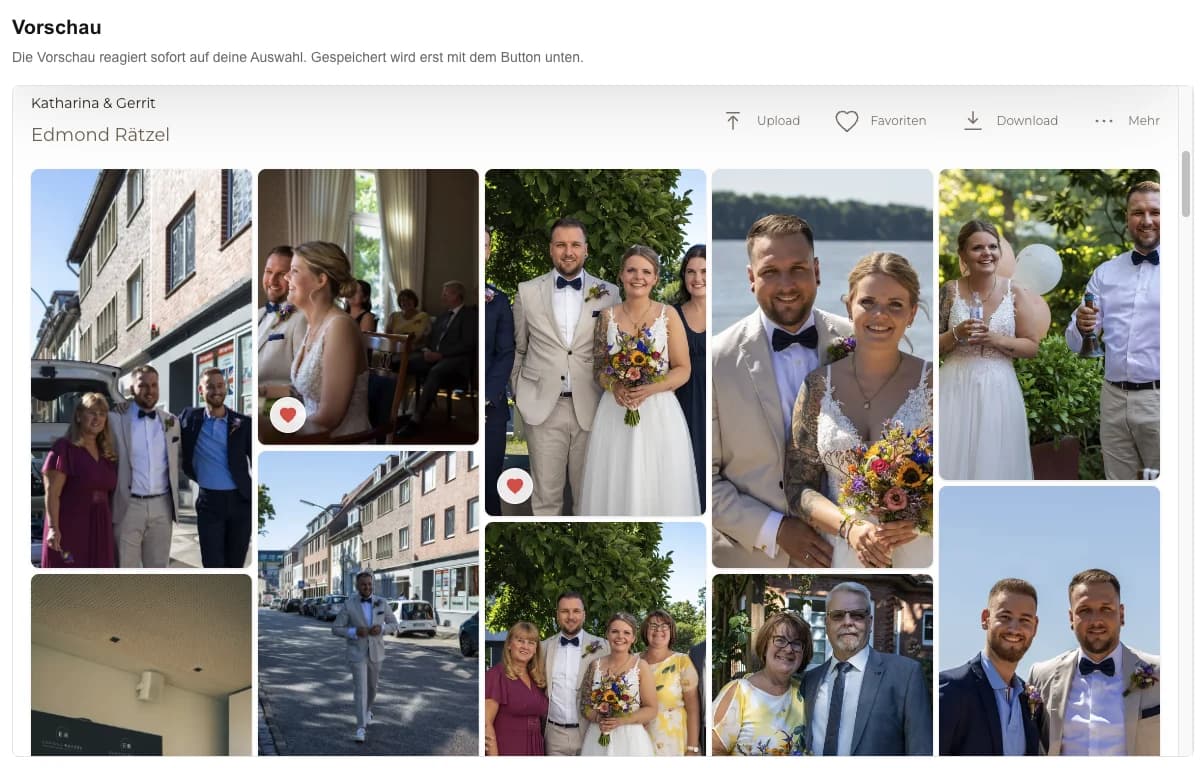
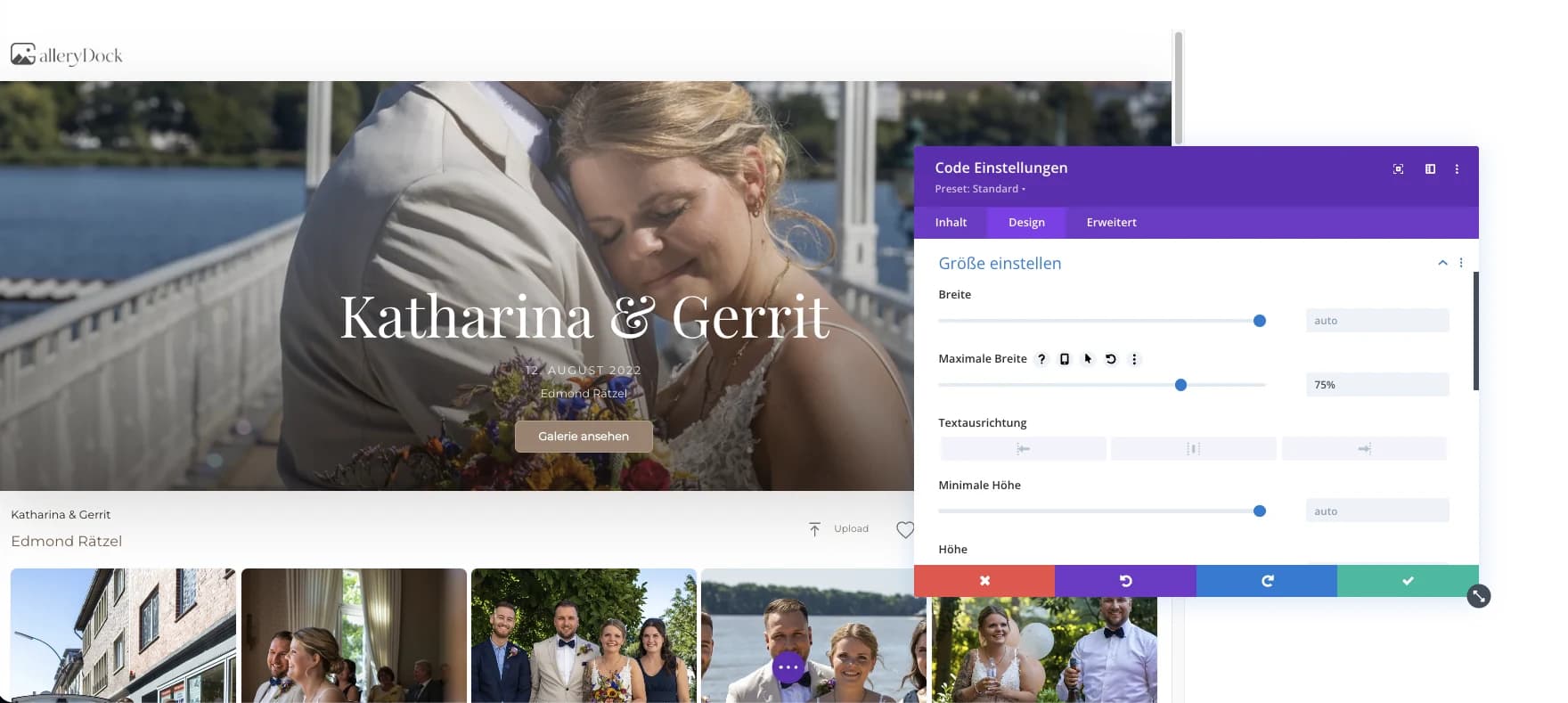
A Weebly photo gallery embed places the maintained GalleryDock client experience inside an existing Weebly page that permits the generated code. The practical result is a published Weebly page where clients can use the configured gallery actions without rebuilding those actions as native website image blocks. Begin with one representative project, prepare only the images and actions this audience should see, and define the next step before publishing. GalleryDock supplies the client-facing gallery, contextual favorites and comments, controlled downloads, guest uploads where configured, and digital or physical print sales when products are enabled. The website owner chooses the placement and remains responsible for the surrounding page, access decisions, publishing permissions, and testing. Check the public experience on desktop and mobile instead of treating an editor preview as proof. This is not a Weebly app, native Weebly gallery, theme-development tutorial, plan guarantee, editor guarantee, or promise of universal third-party-code compatibility.
Step 1
Start with the client’s purpose and the gallery choices that support it.
01
Open the site you intend to publish and check whether its editor provides an Embed Code element. Do not assume that every site sold under a related website-builder brand uses the same editor.
02
Use a page section with a clear purpose, such as a client project or a portfolio collection. A narrow sidebar usually leaves less room for useful gallery interaction.
03
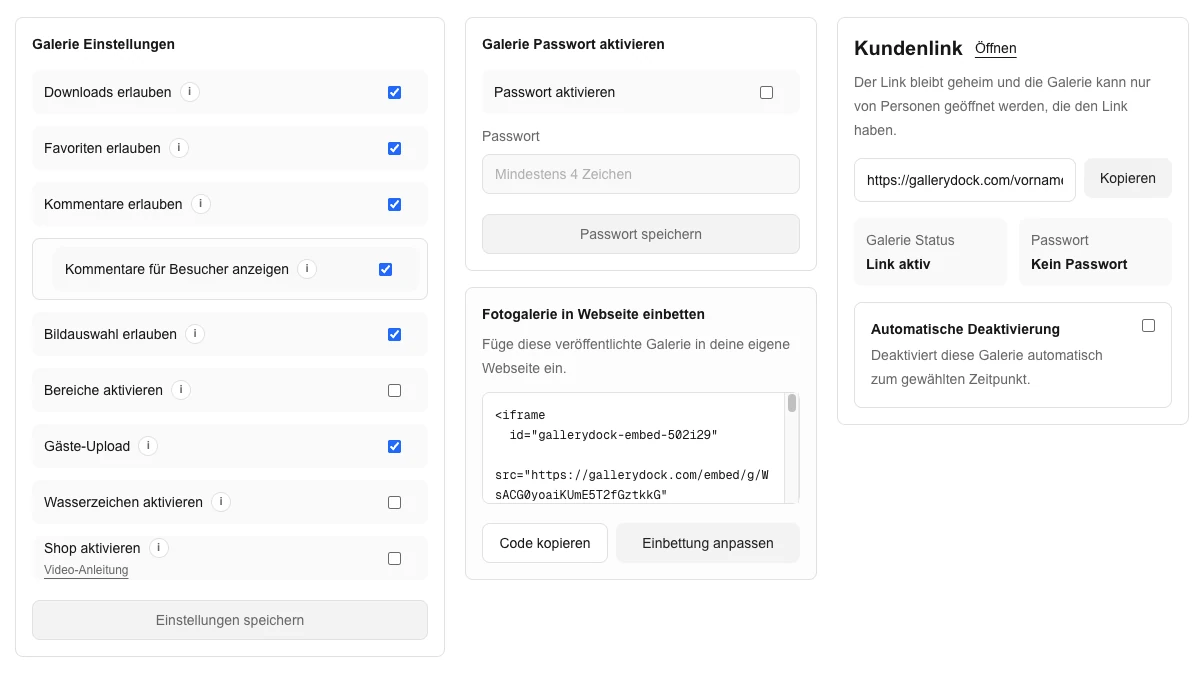
Set the images, access, and intended client actions in GalleryDock before copying code. The embed does not turn those actions into native Weebly gallery features.
04
Confirm that you can edit and publish the destination page. If the editor does not support the required embed, use a clear gallery link instead of changing security settings blindly.
Step 2
Use the prepared GalleryDock gallery and the website’s supported placement path.
01
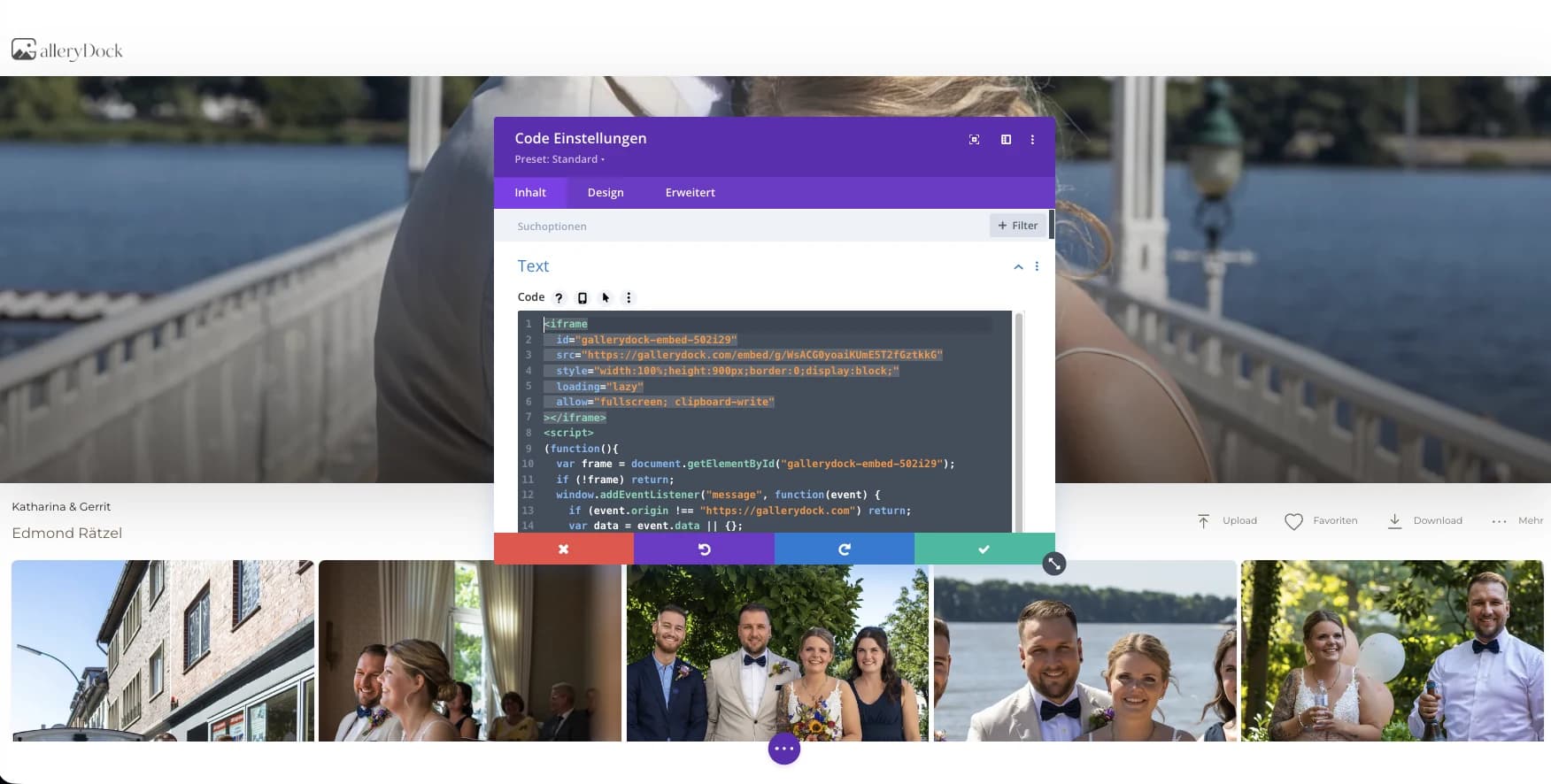
Take the current embed directly from GalleryDock. Keep the generated parts together rather than substituting an image URL or rebuilding the code from a screenshot.
02
Add Weebly’s available Embed Code element in the intended content area and enter the code through its HTML editing control. This does not require a claimed GalleryDock marketplace app.
03
Review the page section and gallery width together. A restrictive theme column can constrain the presentation even when the gallery content itself adapts to screen size.
04
Save and publish through Weebly’s normal workflow, then open the public URL. Treat the editor preview as a placement aid, not the final client test.
Step 3
Review the published page from the intended visitor’s point of view.
01
If the embed is blank, first verify the GalleryDock destination independently. Then check that the complete code is saved in the correct Weebly element.
02
Open photographs, navigate the collection, and inspect the mobile page. Look for clipped dialogs or controls caused by the surrounding layout.
03
Try the relevant favorites, comments, or downloads in a test gallery. If you offer digital or physical products, inspect their handoff as part of the gallery experience.
04
Update the gallery content in GalleryDock rather than duplicating every photograph into Weebly blocks. Recheck the public page after substantial layout or access changes.
Comparison
Compare the options by the job they need to do, not just by whether they can display photographs.
| Approach | Best for | Tradeoff |
|---|---|---|
| Weebly Embed Code element | Placing the generated GalleryDock gallery | Requires a suitable editor content area |
| Weebly image or gallery element | A small native website image collection | Not the same GalleryDock client workflow |
| Direct GalleryDock link | A reliable entry when code placement is unavailable | The gallery opens outside the page |
| Custom theme work | Special website requirements beyond the embed | Adds development and maintenance |
| Standalone gallery delivery | Client handoff without updating Weebly | The website is not the entry point |
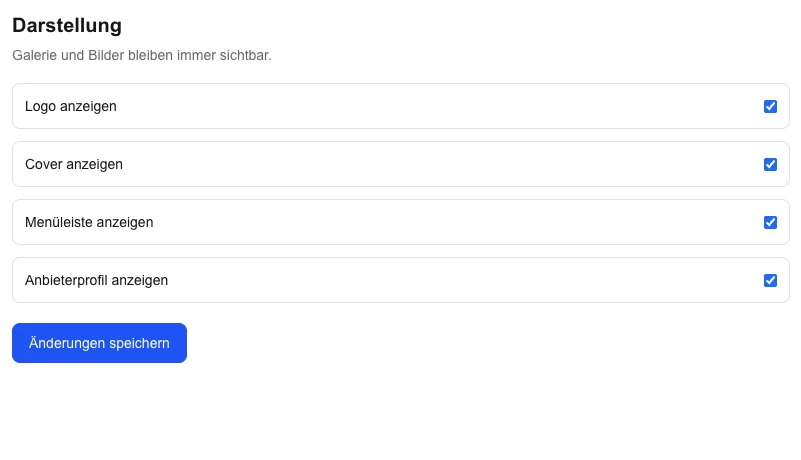
A photographer adds a maintained client gallery below concise assignment context.
A Weebly page gives one project audience a clear route into the configured gallery.
Visitors view photographs and open configured digital or physical product choices.
Frequently asked questions
Use the current Weebly Embed Code path when it is available for the site and test the published result.
No native Weebly app or marketplace integration is claimed by this guide.
No theme development is required or promised; use the site's approved embed area.
No universal plan or editor guarantee is made. Verify the actual site and publishing permissions.
Yes, when those GalleryDock actions and digital or physical products are configured and tested.
Related resources
Pricing
Free forever
0 EUR
EUR 0 per month
Perfect for sharing your first galleries professionally.
Start free, no credit card required
Monthly
19 EUR
EUR 228 billed yearly. plus VAT
Ideal for photographers who regularly deliver client galleries.
For regular client delivery
Monthly
29 EUR
EUR 348 billed yearly. plus VAT
For photographers managing many projects, videos and growing storage.
For regular client delivery
Prepare one real gallery, place it on the intended page, and test the public result from start to finish. The goal is a published Weebly page where clients can use the configured gallery actions without rebuilding those actions as native website image blocks. GalleryDock supports the gallery and commerce path without replacing website administration, professional judgment, access policy, or third-party platform responsibility.
Create a free account