01
Choose who should contribute
Decide whether the upload invitation is for wedding guests, staff at a company event, or another defined audience. A public event page and a private family collection need different access choices.
guest photo uploads on your website
Add guest photo uploads to your website with a prepared GalleryDock event gallery, clear participation guidance, and a tested mobile upload path.
Quick answer
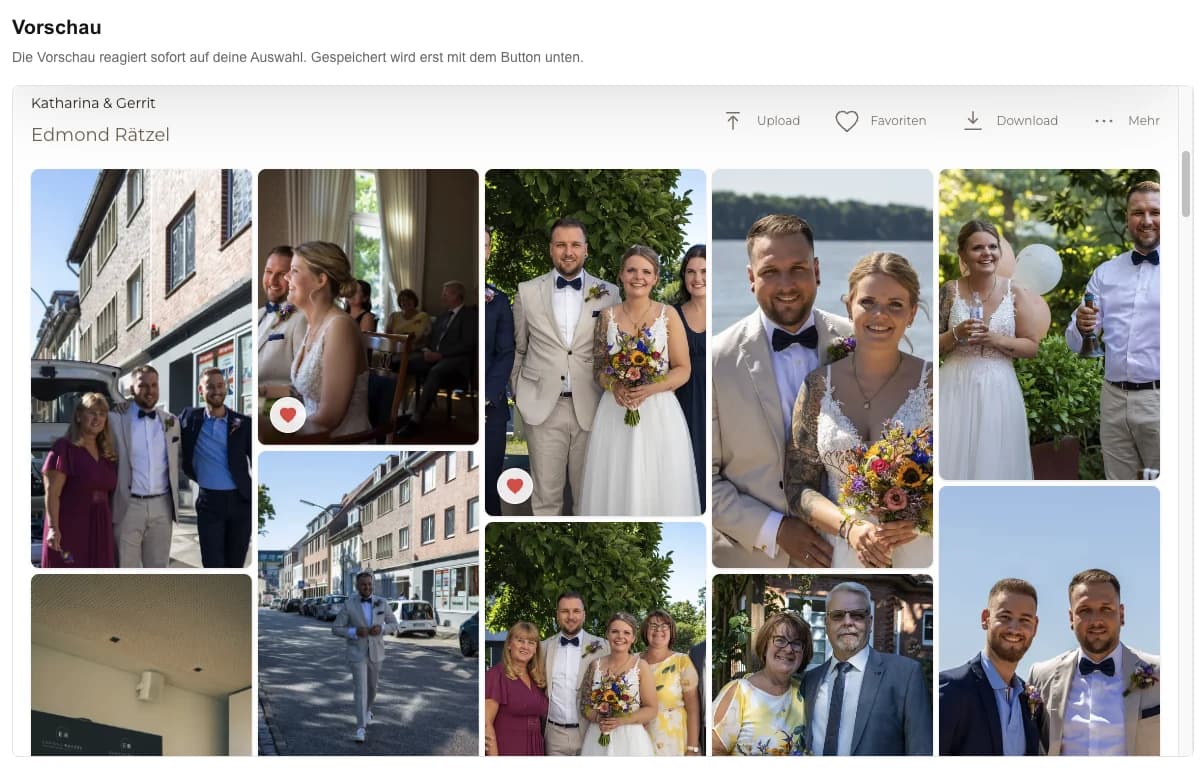
Guest photo uploads on your website give event participants a clear place to contribute their own photos or videos beside the shared gallery experience. The practical result is an event page where invited guests can understand the contribution request, upload through the configured GalleryDock path, and return to the gallery. Begin with one representative project, prepare only the images and actions this audience should see, and define the next step before publishing. GalleryDock supplies the client-facing gallery, contextual favorites and comments, controlled downloads, guest uploads where configured, and digital or physical print sales when products are enabled. The website owner chooses the placement and remains responsible for the surrounding page, access decisions, publishing permissions, and testing. Check the public experience on desktop and mobile instead of treating an editor preview as proof. This is not the photographer's backend upload workflow, an anonymous universal drop zone, general cloud storage, automatic moderation, rights clearance, consent management, or a virus-scan guarantee.
Step 1
Start with the client’s purpose and the gallery choices that support it.
01
Decide whether the upload invitation is for wedding guests, staff at a company event, or another defined audience. A public event page and a private family collection need different access choices.
02
Ask for a useful contribution such as candid reception moments or behind-the-scenes event photographs. A clear request reduces unrelated files and makes the finished collection easier to review.
03
Tell participants what the collection is for and how the organizer intends to use contributions. The gallery does not replace the organizer’s responsibility for permission and appropriate use.
04
Name the person who will review contributions and answer guest questions. Do not promise automatic moderation, rights clearance, or a virus check that has not been established.
Step 2
Use the prepared GalleryDock gallery and the website’s supported placement path.
01
Configure the intended guest-upload path before adding it to the website. This is separate from the photographer uploading the original shoot into the account.
02
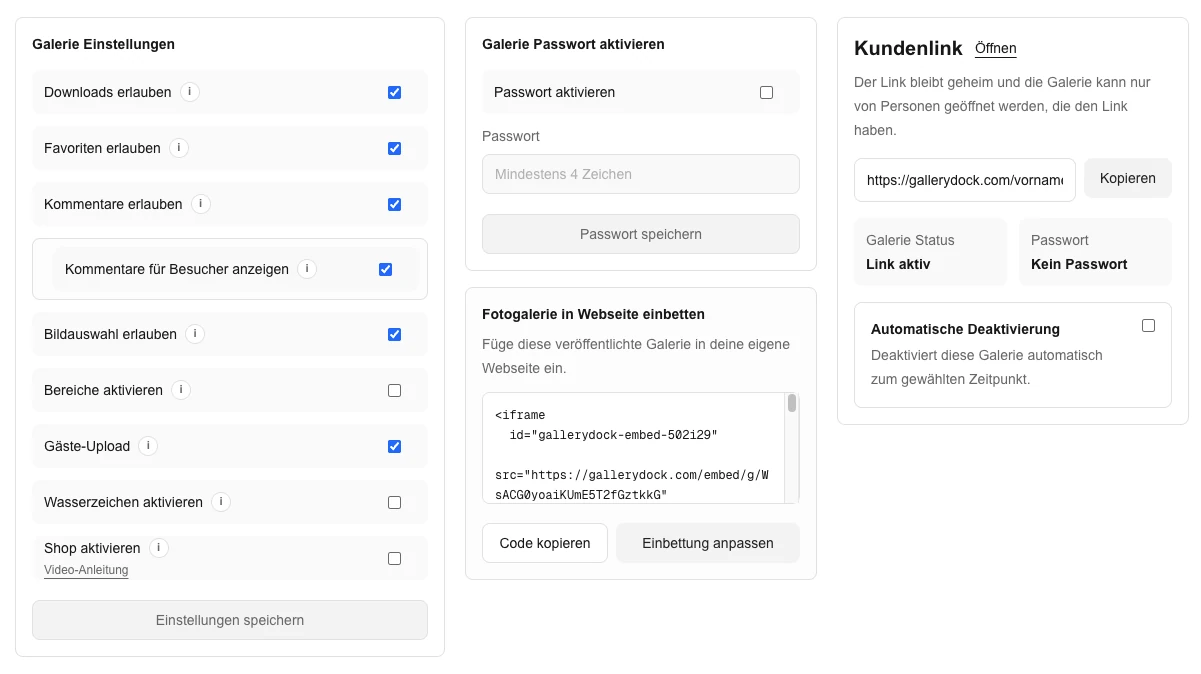
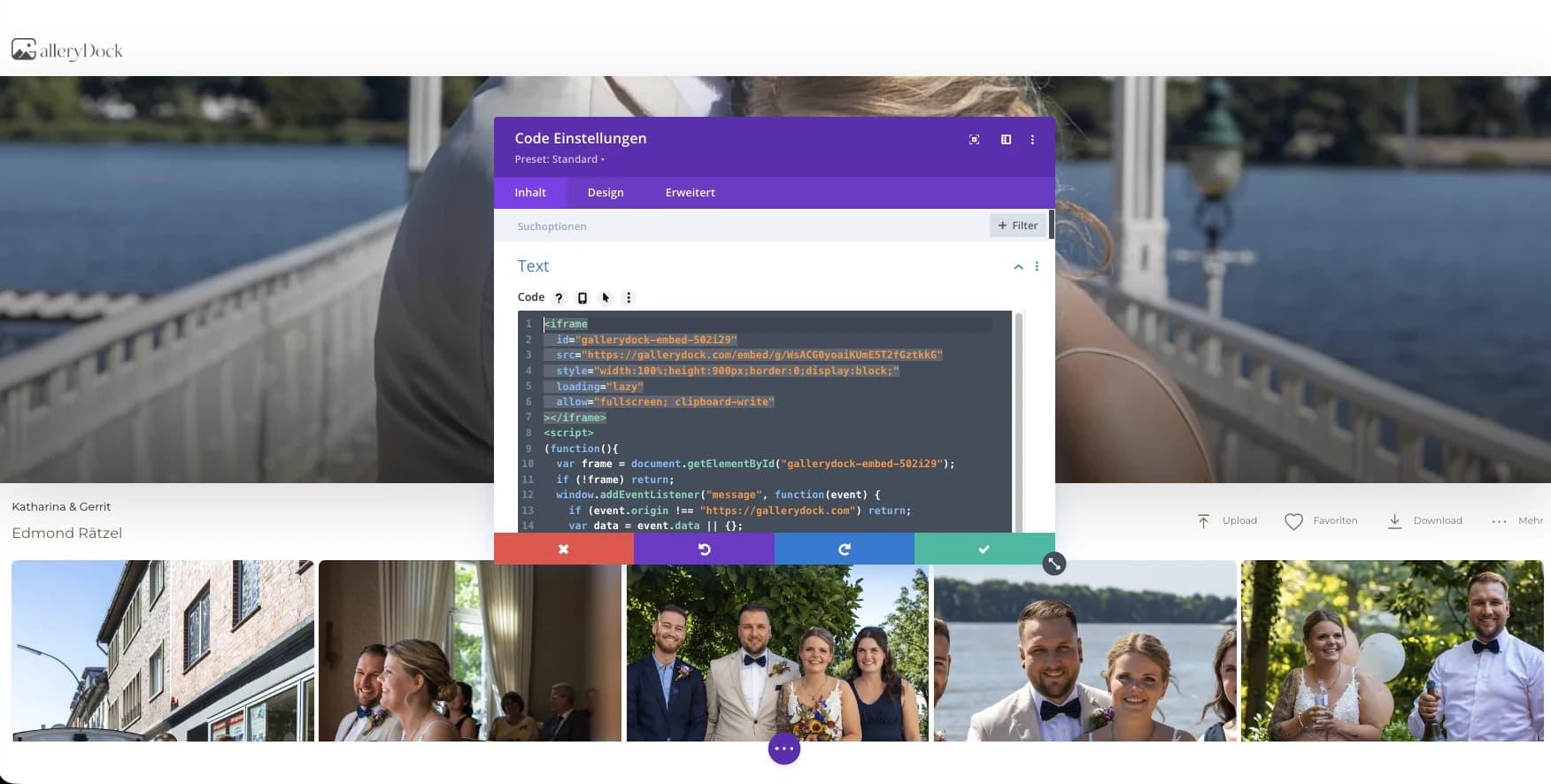
Use the complete generated embed in the site’s supported area. Keep the upload invitation near the gallery so guests do not mistake it for a contact form or booking request.
03
Explain how to open the upload action, choose the intended media, and wait for completion. Most guests will arrive with a phone rather than a desktop file-management workflow.
04
Send guests the published event page rather than an owner preview. Check that the chosen audience can reach it with the intended access settings.
Step 3
Review the published page from the intended visitor’s point of view.
01
Use a permitted test photo from a guest-like device and confirm the result. If you plan to invite videos too, separately verify a supported video rather than assuming the photo test covers it.
02
Confirm how the interface tells the guest that the upload has finished. Encourage participants to wait for that state instead of repeatedly submitting the same file.
03
Review the uploaded media from the organizer’s side and from the intended gallery view. Make sure your invitation accurately describes the experience guests receive.
04
Decide whether the contribution invitation should remain available. Review the gallery settings and update the surrounding event message when the collection phase ends.
Comparison
Compare the options by the job they need to do, not just by whether they can display photographs.
| Approach | Best for | Tradeoff |
|---|---|---|
| Embedded guest upload | Contributions beside the event gallery | Prepare access and participation guidance |
| Direct guest-gallery link | A quick invitation without a website page | Guests leave the surrounding event page |
| Photographer account upload | The professional prepares the main collection | Not the guest-facing contribution path |
| Shared storage folder | A file collection managed outside the gallery | Organization and presentation remain separate |
| Individual message submissions | A small number of personal contributions | The organizer must gather scattered files |
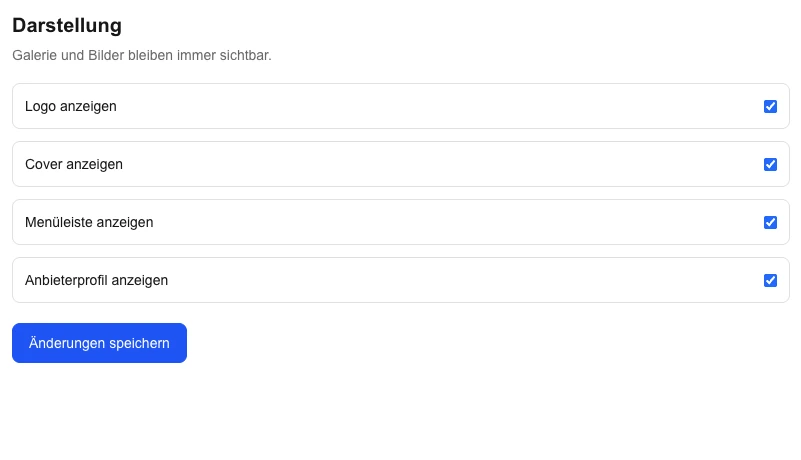
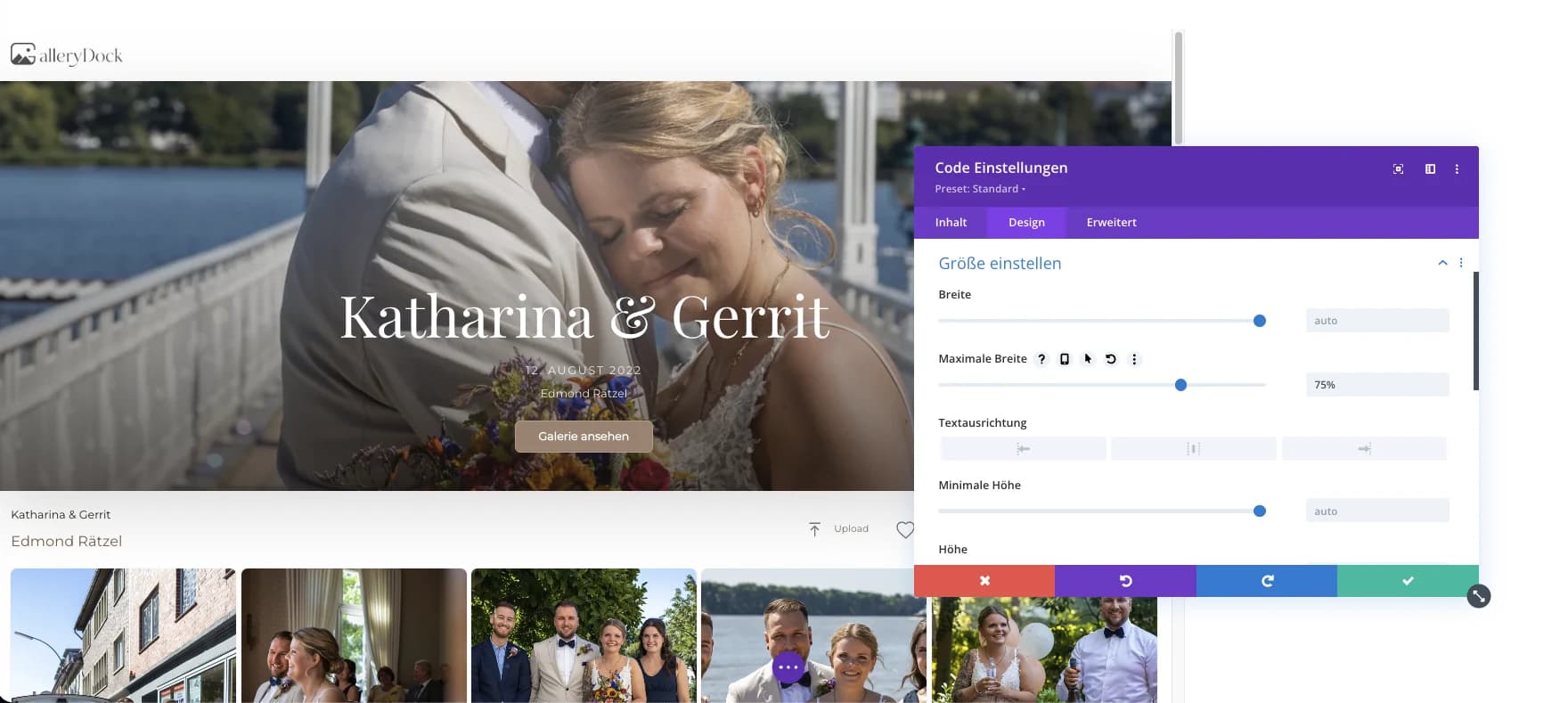
Invited guests contribute phone photographs to the prepared wedding gallery path.
Attendees share selected event moments through one branded event page.
Participants receive clear contribution guidance and a single destination for permitted media.
Frequently asked questions
Yes, when the GalleryDock guest-upload workflow is configured and the embedded path is available to the intended audience.
No. Photographer preparation and guest contributions are separate workflows with different responsibilities.
Use the media types supported by the configured GalleryDock workflow and verify a representative file before inviting guests.
No. The organizer remains responsible for participation guidance, consent, rights, and appropriate use.
Choose access according to the event and audience; do not assume that every contribution page should be publicly open.
Related resources
Pricing
Free forever
0 EUR
EUR 0 per month
Perfect for sharing your first galleries professionally.
Start free, no credit card required
Monthly
19 EUR
EUR 228 billed yearly. plus VAT
Ideal for photographers who regularly deliver client galleries.
For regular client delivery
Monthly
29 EUR
EUR 348 billed yearly. plus VAT
For photographers managing many projects, videos and growing storage.
For regular client delivery
Prepare one real gallery, place it on the intended page, and test the public result from start to finish. The goal is an event page where invited guests can understand the contribution request, upload through the configured GalleryDock path, and return to the gallery. GalleryDock supports the gallery and commerce path without replacing website administration, professional judgment, access policy, or third-party platform responsibility.
Create a free account