01
Protect the gallery itself
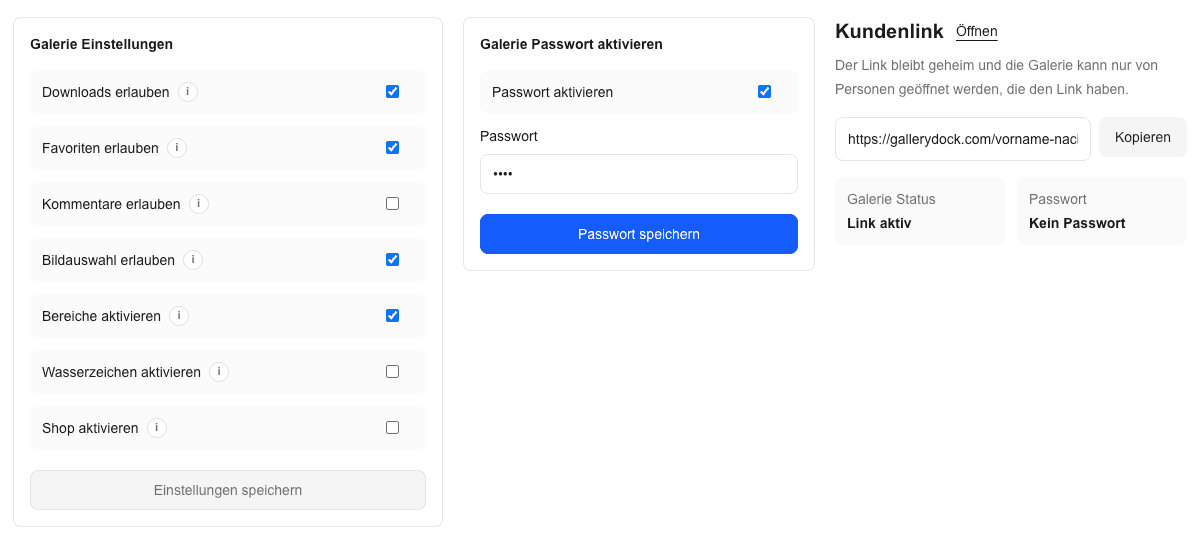
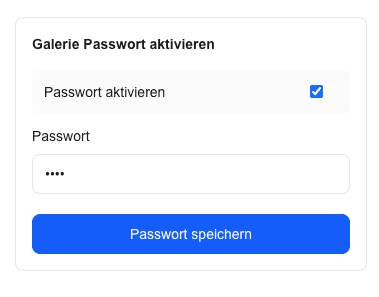
Configure the password on the GalleryDock gallery. Hiding the surrounding website page is a different choice and should not be assumed to protect a separately reachable gallery link.
password-protected gallery on your website
Add a password-protected GalleryDock photo gallery to your website, keep website and gallery access separate, and test the real client entry.
Quick answer
A password-protected photo gallery on your website combines a branded website entry with separately configured GalleryDock gallery access. The practical result is a private client path where the surrounding page and gallery access have both been configured and tested without implying a general account system. Begin with one representative project, prepare only the images and actions this audience should see, and define the next step before publishing. GalleryDock supplies the client-facing gallery, contextual favorites and comments, controlled downloads, guest uploads where configured, and digital or physical print sales when products are enabled. The website owner chooses the placement and remains responsible for the surrounding page, access decisions, publishing permissions, and testing. Check the public experience on desktop and mobile instead of treating an editor preview as proof. This is not a GalleryDock claim of user accounts, identity verification, SSO, DRM, screenshot prevention, or a security-policy bypass; password access is one layer of the client workflow.
Step 1
Start with the client’s purpose and the gallery choices that support it.
01
Configure the password on the GalleryDock gallery. Hiding the surrounding website page is a different choice and should not be assumed to protect a separately reachable gallery link.
02
Decide where clients will find the gallery on your website. A branded project page can introduce the assignment without exposing private details in its public title or description.
03
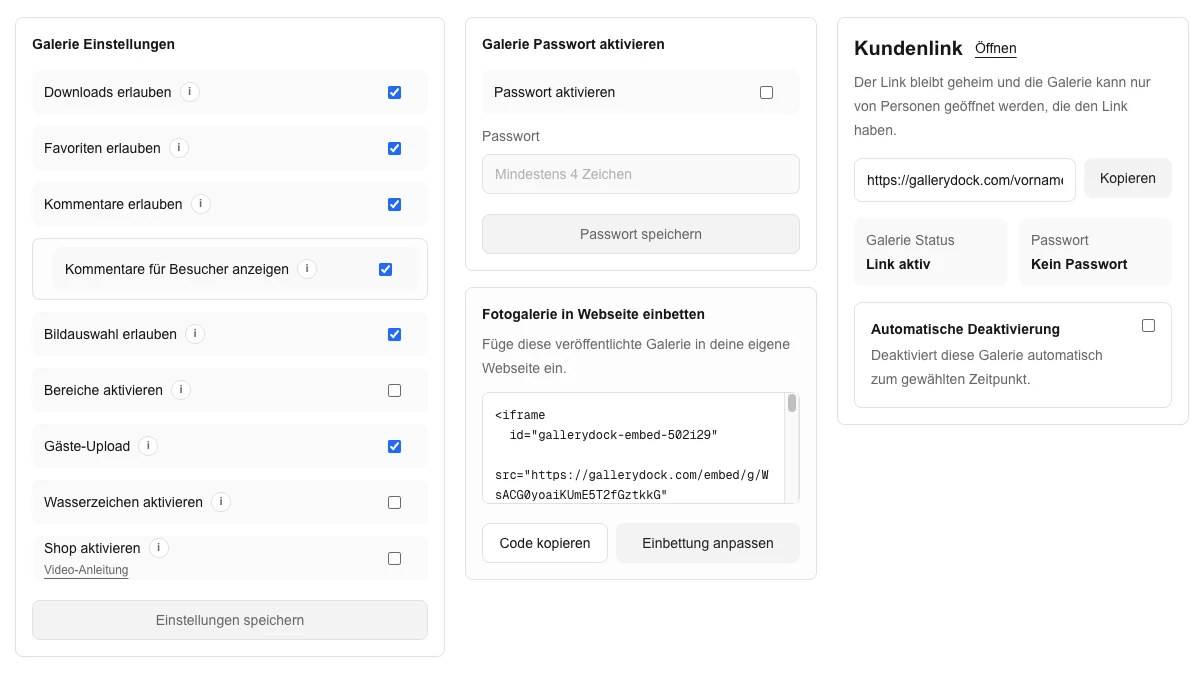
Review downloads, favorites, comments, and any products independently of the password. Opening a protected gallery should not imply that every possible action belongs in that project.
04
Tell the client how the entry and password may be shared. A shared password is not an identity check or a separate account for every viewer.
Step 2
Use the prepared GalleryDock gallery and the website’s supported placement path.
01
Prepare access in GalleryDock before copying the embed. Keep the password out of public website copy and image captions.
02
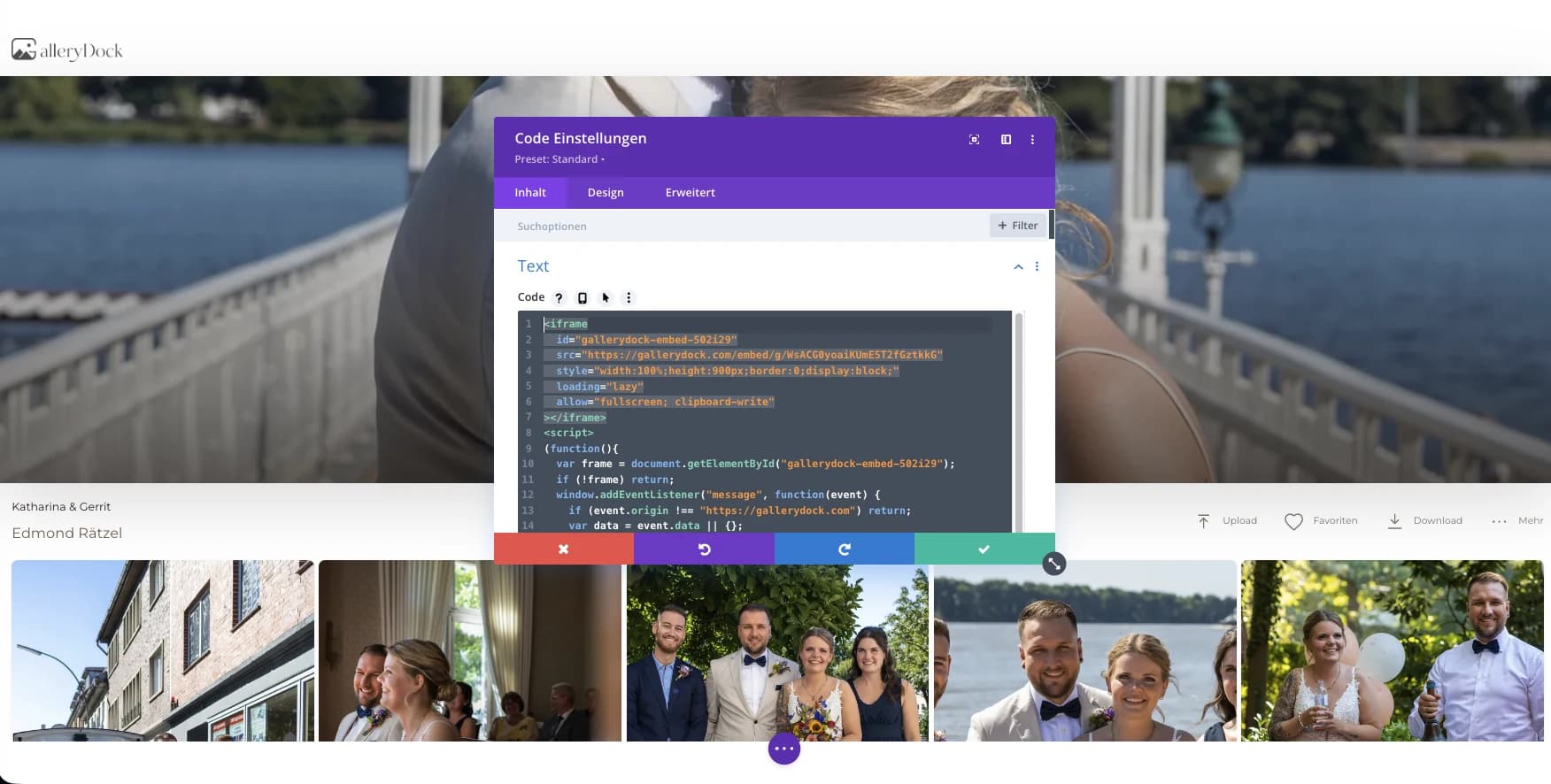
Insert the generated embed in the website’s supported area and publish the page. Retain the actual GalleryDock access flow rather than building an improvised login form around it.
03
Use an appropriate client communication channel. Explain which page to open and where to enter the password without placing the password beside a public gallery entry.
04
Tell the client whether this is a review, selection, or final-delivery gallery. Keep those instructions distinct from the simple step of entering a password.
Step 3
Review the published page from the intended visitor’s point of view.
01
Use a signed-out browser to open both the website entry and the gallery destination. Your own authenticated preview is not proof that the client access flow is correct.
02
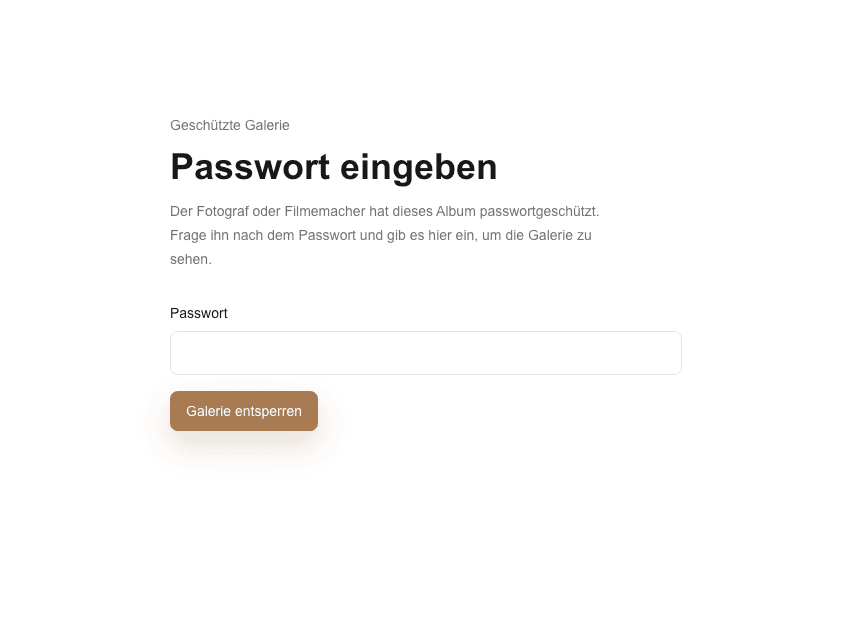
Confirm that the intended password works and that a wrong password does not open the collection. Avoid describing this as protection against screenshots or copying after access.
03
Make sure the prompt, submit control, and any messages remain visible within the embed. A short or narrow container can make an otherwise working access step confusing.
04
When access settings change, check the client path again. Do not promise that changing a password recalls files that a viewer has already downloaded.
Comparison
Compare the options by the job they need to do, not just by whether they can display photographs.
| Approach | Best for | Tradeoff |
|---|---|---|
| Password-protected embedded gallery | A branded page leading to configured gallery access | Website access is still a separate decision |
| Private gallery link | A straightforward protected client handoff | Less surrounding website context |
| Password-protected website page | Restricting the page around the gallery | Does not automatically protect a separate gallery URL |
| Public portfolio embed | Showing work intended for everyone | Not appropriate for a private client collection |
| Account-based client portal | Requirements for individual user identities | Not supplied by this password-gallery workflow |
A family receives one website entry and a separate gallery password.
A project contact opens the prepared gallery without receiving a general website account.
A couple uses a private gallery path for viewing, favorites, downloads, and configured products.
Frequently asked questions
Yes. Configure the GalleryDock gallery password and test the embedded or linked client path from a signed-out browser.
No. Website-page access and GalleryDock gallery access are separate controls that must be configured deliberately.
No general GalleryDock user-account or identity-verification system is claimed by this workflow.
No. Password access does not provide DRM or guarantee screenshot prevention.
Use an appropriate private client communication path and avoid publishing the password beside the protected entry.
Related resources
Pricing
Free forever
0 EUR
EUR 0 per month
Perfect for sharing your first galleries professionally.
Start free, no credit card required
Monthly
19 EUR
EUR 228 billed yearly. plus VAT
Ideal for photographers who regularly deliver client galleries.
For regular client delivery
Monthly
29 EUR
EUR 348 billed yearly. plus VAT
For photographers managing many projects, videos and growing storage.
For regular client delivery
Prepare one real gallery, place it on the intended page, and test the public result from start to finish. The goal is a private client path where the surrounding page and gallery access have both been configured and tested without implying a general account system. GalleryDock supports the gallery and commerce path without replacing website administration, professional judgment, access policy, or third-party platform responsibility.
Create a free account