Define the real client journey
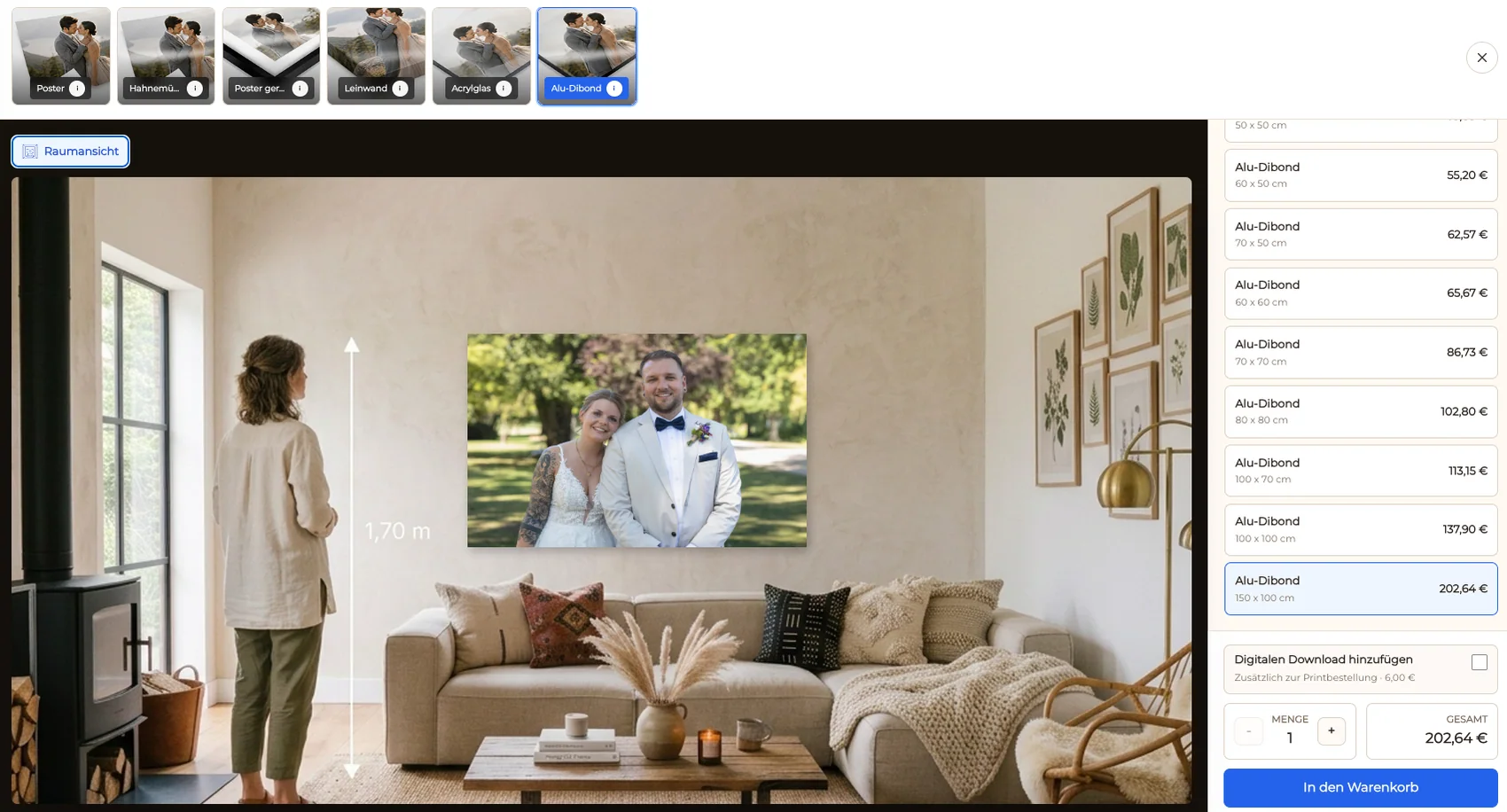
Separate the two visual jobs: use the lightbox to inspect the photograph and the fixed room view to assess the configured wall-art combination.
Fullscreen wall art preview
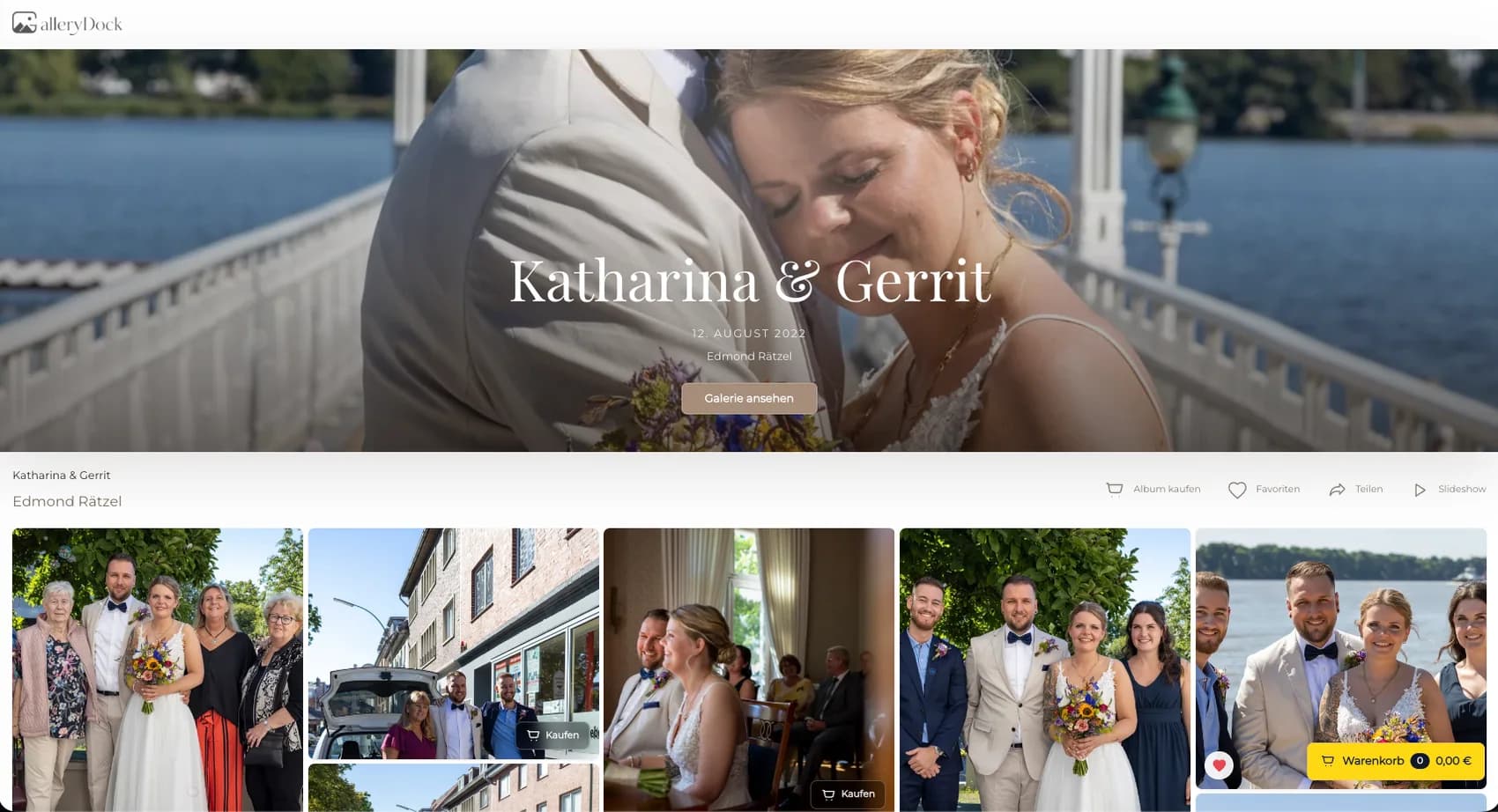
Use a fullscreen wall art preview by moving from the gallery lightbox to product configuration, crop review, GalleryDock's fixed room view, cart, and checkout.
Quick answer
Use a fullscreen wall art preview by moving from the gallery lightbox to product configuration, crop review, GalleryDock's fixed room view, cart, and checkout. This uses the media lightbox and GalleryDock's fixed room preview. It is not browser fullscreen, a client-room upload, augmented reality, wall measurement, or automatic size recommendation.
Offer design
A useful fullscreen wall art preview workflow begins with a clear audience, a finished assignment, and a truthful product path.
Separate the two visual jobs: use the lightbox to inspect the photograph and the fixed room view to assess the configured wall-art combination.
Select only finished photographs that support fullscreen wall art preview. Remove technical misses and repetitive frames before the buyer sees the offer.
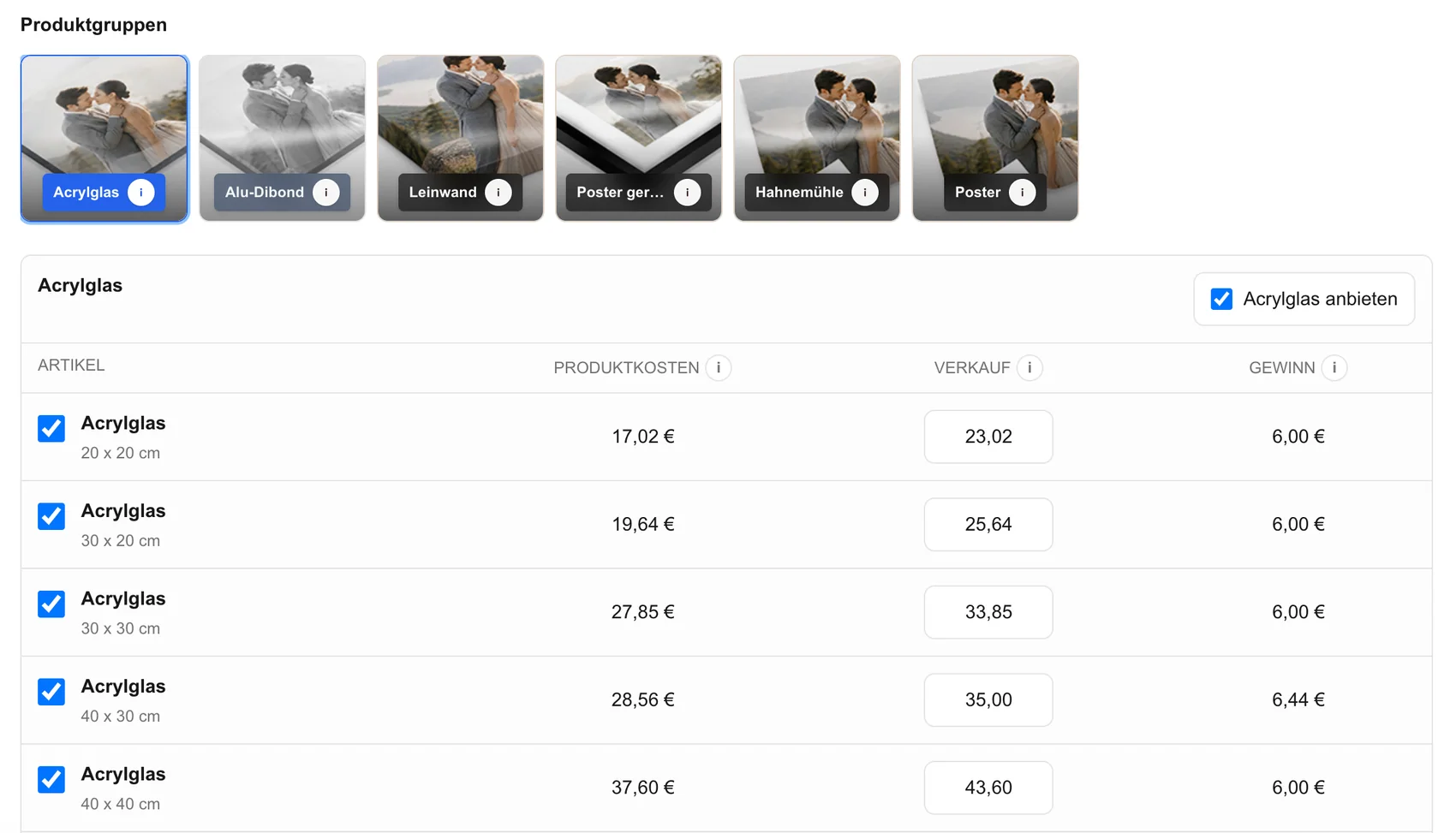
Choose configured products, dimensions, prices, and access settings for photographers helping clients inspect a photograph and a configured wall-art preview. Keep the offer narrow enough to understand at the image.
This uses the media lightbox and GalleryDock's fixed room preview. It is not browser fullscreen, a client-room upload, augmented reality, wall measurement, or automatic size recommendation.
Client decision
The buyer should understand which photograph is being ordered, what the configured product includes, and why the selected format fits.
Inspect the photograph in the lightbox, configure the wall product, orientation, dimensions, and crop, then enlarge the fixed room preview before moving the same choice into the cart.
Compare portrait and landscape formats with the original composition. Protect faces, hands, instruments, architectural lines, horizons, text, and intentional negative space.
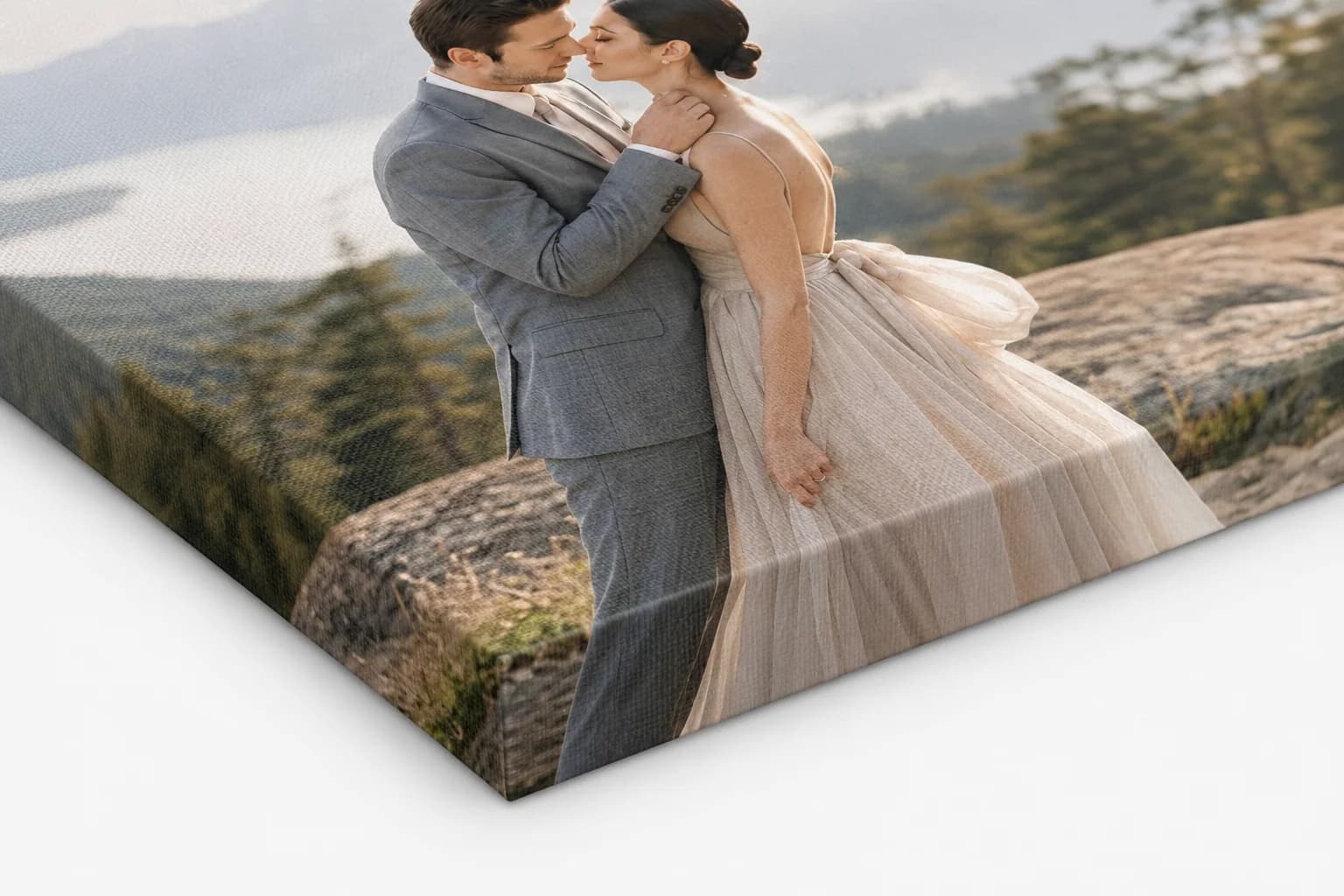
Inspect the visible print area and safe area at the selected size. A preview helps identify edge problems but does not replace exact dimensions or a verified production specification.
Show product, size, quantity, and price together. If digital files are also available, describe them as a separate outcome so the client understands what enters the cart.
Order verification
Treat checkout as the end of client selection and the beginning of a controlled order review.
Open a representative gallery on desktop and mobile. Confirm that access, product names, dimensions, prices, preview controls, cart actions, and checkout handoff remain readable without horizontal overflow.
Verify that the intended photograph, product, dimensions, orientation, quantity, and price survive the transition into the cart.
Review the final source file, crop, product specification, buyer data, and payment state before production. Resolve uncertainty before it becomes a delivery problem.
GalleryDock supports the configured gallery-to-order path. Production providers, manufacturing, packing, shipping, taxes, licensing decisions, and business results remain separate verified responsibilities.
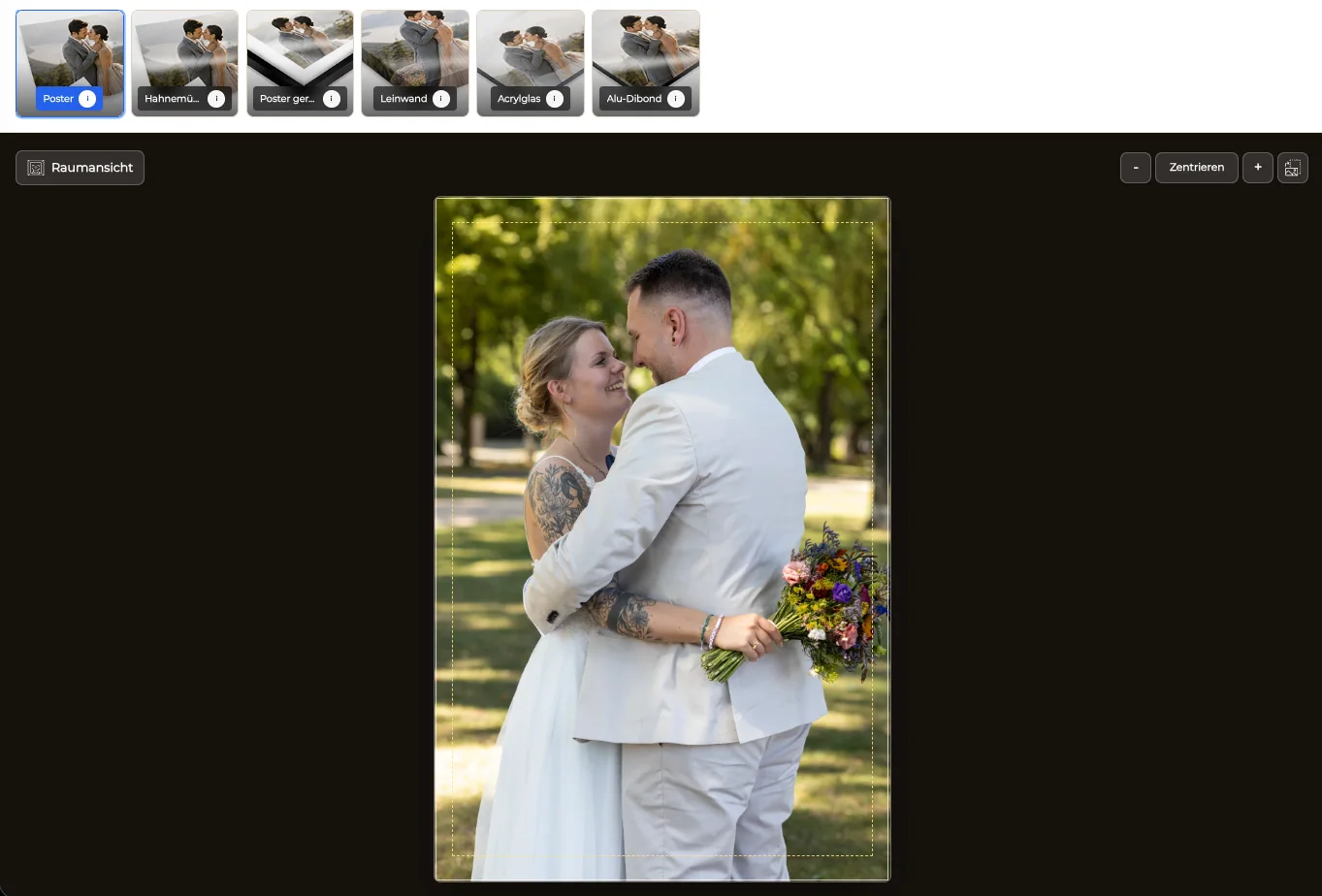

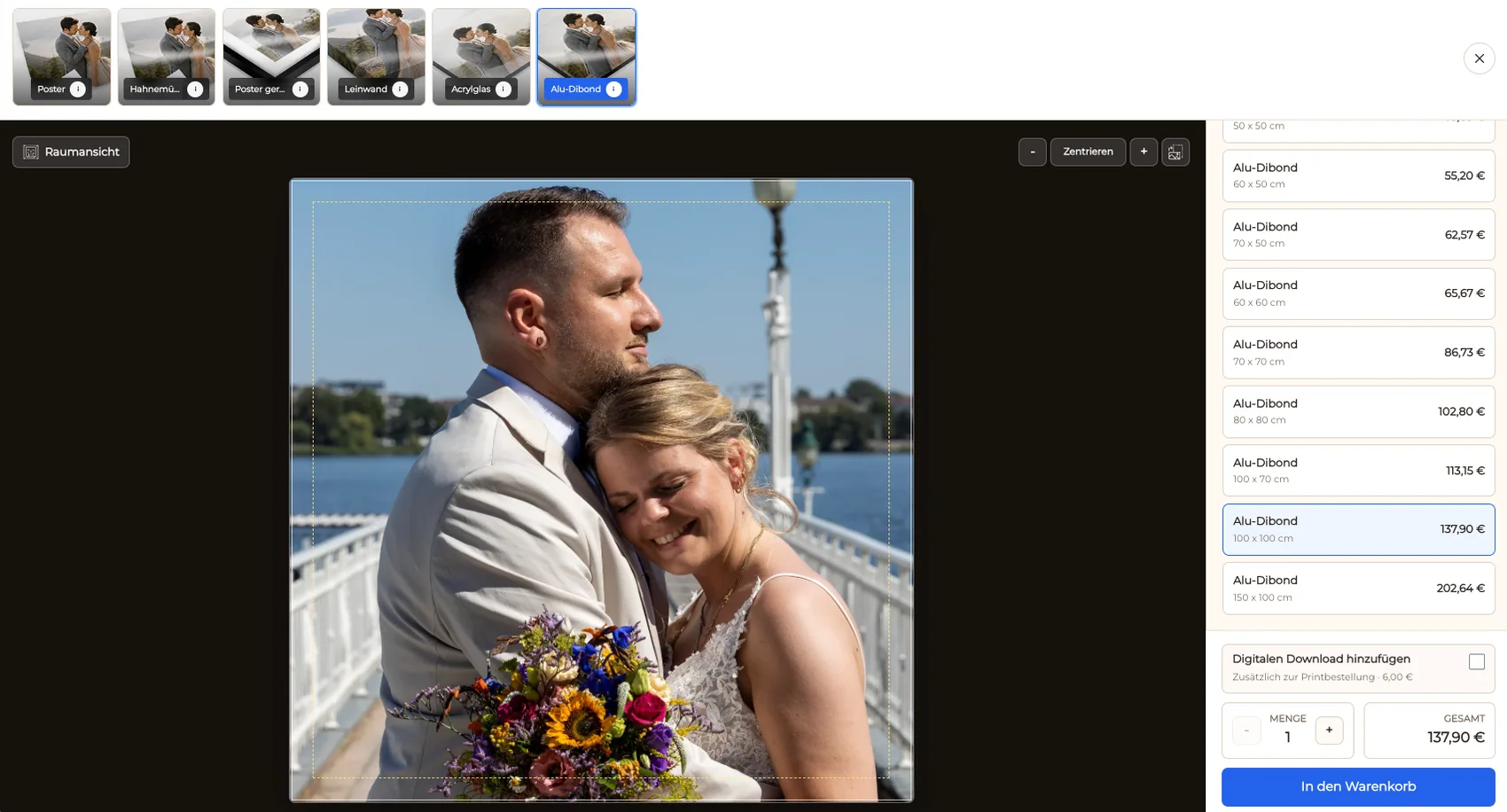
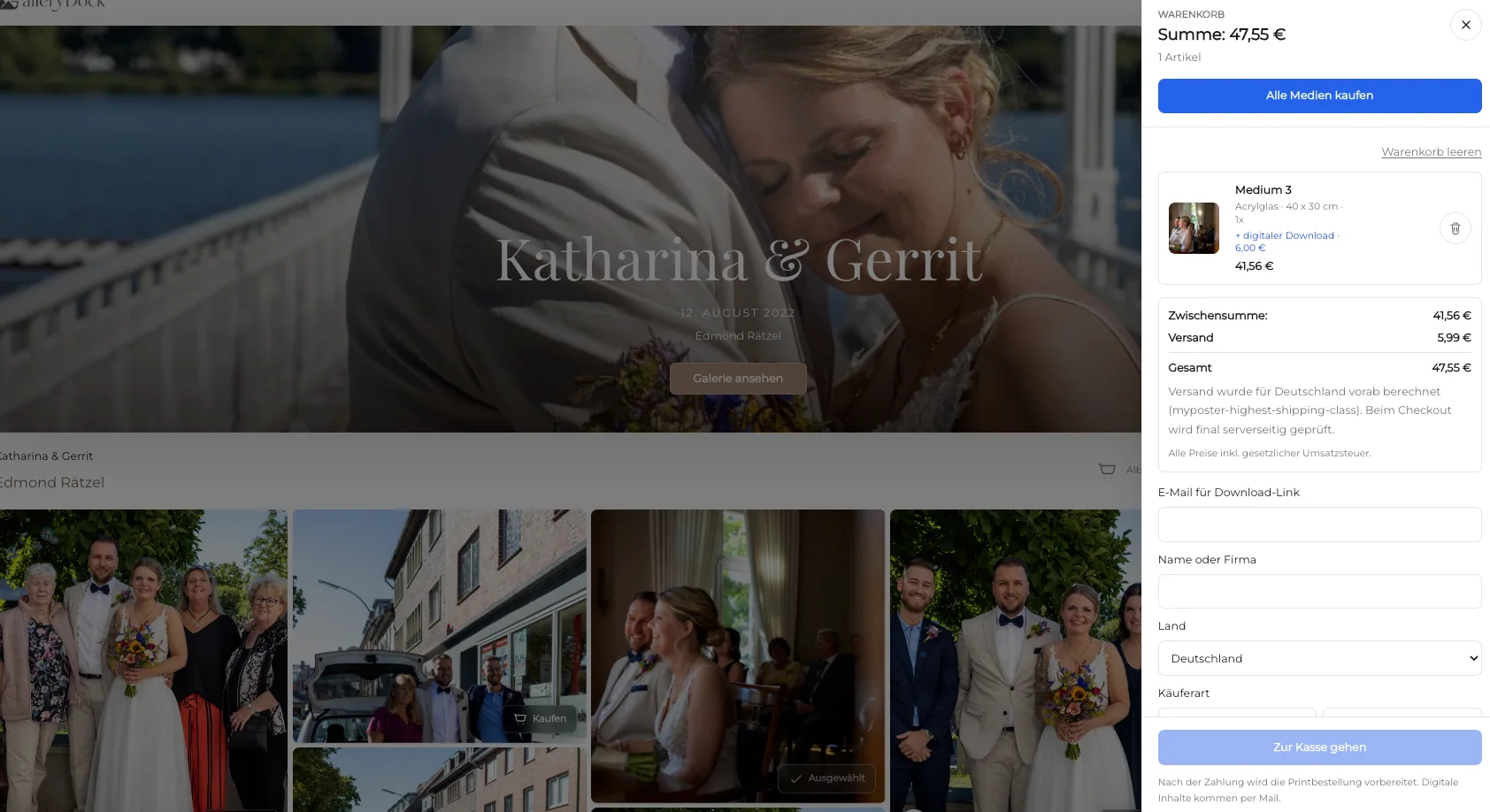
Comparison
Compare the practical ways to handle fullscreen wall art preview. The useful route is the one that keeps the finished photograph, configured product, buyer context, and order record connected.
| Approach | Best for | Tradeoff |
|---|---|---|
| Gallery-based order | photographers helping clients inspect a photograph and a configured wall-art preview | Requires a prepared gallery and product setup |
| Manual email order | An exceptional custom request | Separates image, specification, and payment |
| General ecommerce catalog | Many unrelated product categories | Loses the assignment context |
| Download-only gallery | Digital delivery without physical products | Does not guide a physical print decision |
Inspect expression before product configuration.
Protect horizon and negative space.
Keep every face and hand inside the crop.
Use the preview before exact site measurement.
Frequently asked questions
It helps them inspect the photograph itself before choosing a physical product.
It places the configured wall art in GalleryDock's fixed room scene for a visual size comparison.
No client-room upload or augmented-reality placement is claimed.
No. Exact wall and installation measurements remain a separate responsibility.
The photograph, product, dimensions, orientation, crop, quantity, and price should remain explicit.
Related resources
Pricing
Free forever
0 EUR
EUR 0 per month
Perfect for sharing your first galleries professionally.
Start free, no credit card required
Monthly
19 EUR
EUR 228 billed yearly. plus VAT
Ideal for photographers who regularly deliver client galleries.
For regular client delivery
Monthly
29 EUR
EUR 348 billed yearly. plus VAT
For photographers managing many projects, videos and growing storage.
For regular client delivery
Prepare one representative assignment, configure the fullscreen wall art preview path, inspect every visible choice, and test the journey from gallery view to cart before publishing.
Create a free account