Embed a photo print store in Elementor with GalleryDock code, an HTML widget, a deliberate container, responsive checks, product choice, cart, and checkout.
Embed a photo print store in Elementor by placing generated GalleryDock code in an HTML widget, giving the gallery a deliberate responsive container, and testing image choice, products, sizes, crop, cart, and checkout on the published WordPress page. This workflow does not claim a GalleryDock plugin, addon, automatic sync, theme integration, or guaranteed performance result.
Offer design
Shape a clear Elementor photo print store path
A strong Elementor photo print store page begins with a narrow promise, a truthful configuration, and photographs that already have meaning for the intended buyer.
Start with the finished photographs
Use approved, fully edited photographs as the starting point. The photographer already uses Elementor and needs one maintained gallery and store embedded with enough width for a complete image-to-cart path. The offer should support the assignment rather than force every image into the same product or message.
Define a focused Elementor photo print store path
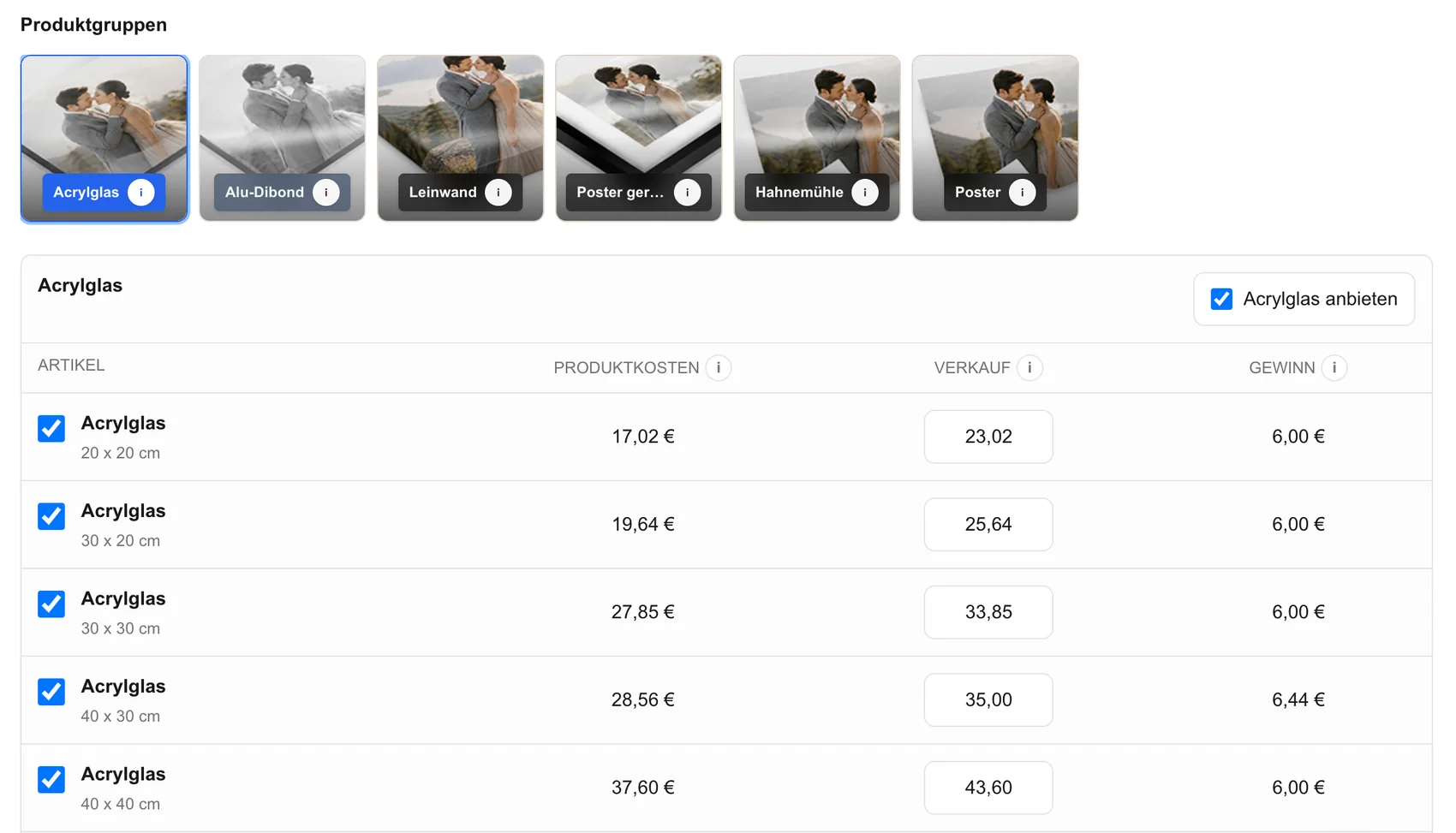
Choose only configured products, sizes, prices, and access settings that fit photographers using Elementor who want the print-buying path to remain inside the visual context of their own WordPress page. State what the client receives and keep every claim limited to options that actually exist.
Keep the page's job specific
This page owns the Elementor print-store embed and public purchase test; it does not claim a GalleryDock Elementor plugin, addon, automatic sync, theme integration, or universal performance result. That boundary keeps this guide distinct from broader store, delivery, legal, or business-management pages.
Connect the offer to a real assignment
Place the offer beside the delivered photographs instead of asking clients to reconstruct image numbers and product choices in a separate message. The gallery context keeps the image and decision connected.
Client decision
Guide the choice at the image
The useful decision is whether that exact image, product, access path, and price fit the assignment and the buyer's intent.
Review orientation and aspect ratio
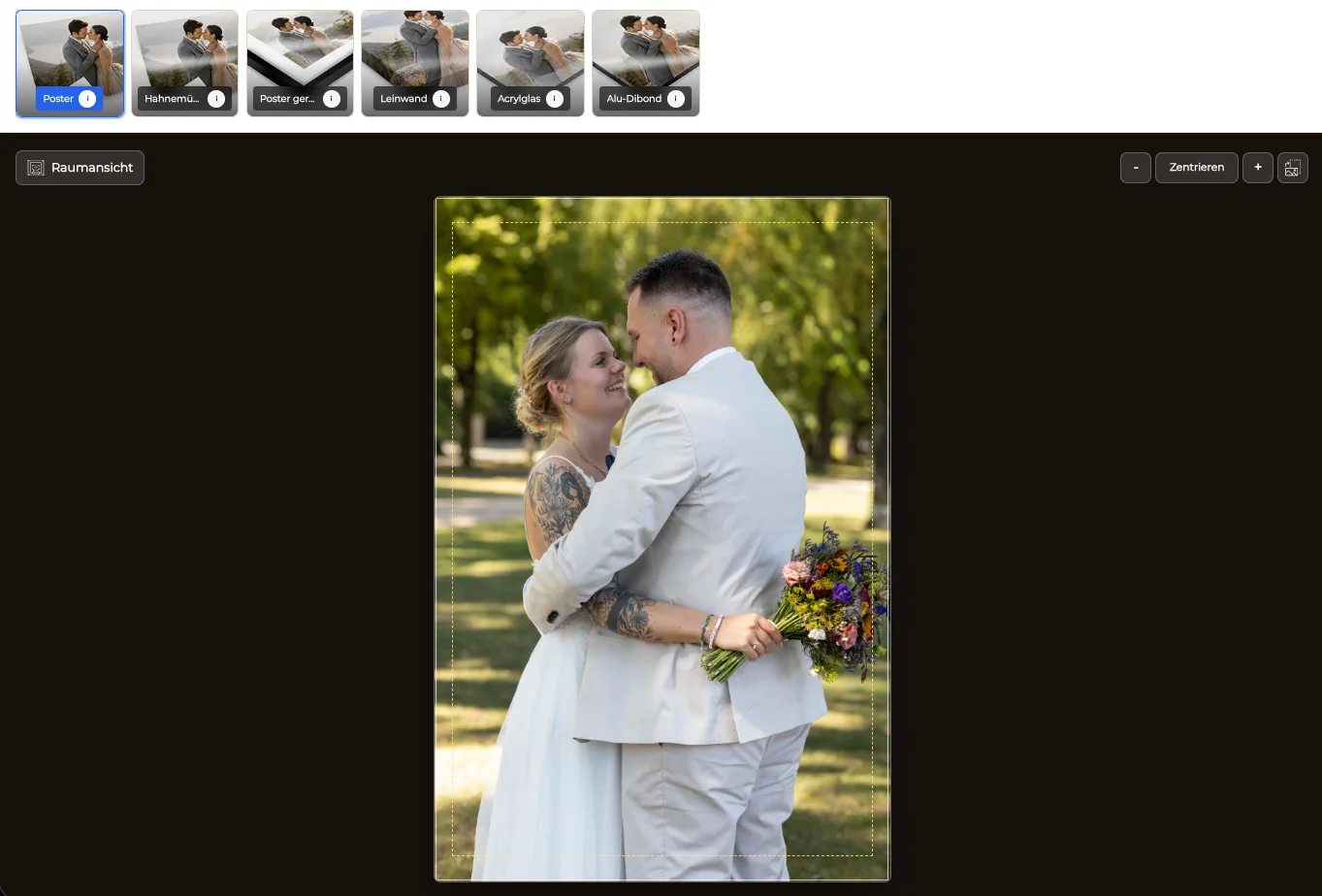
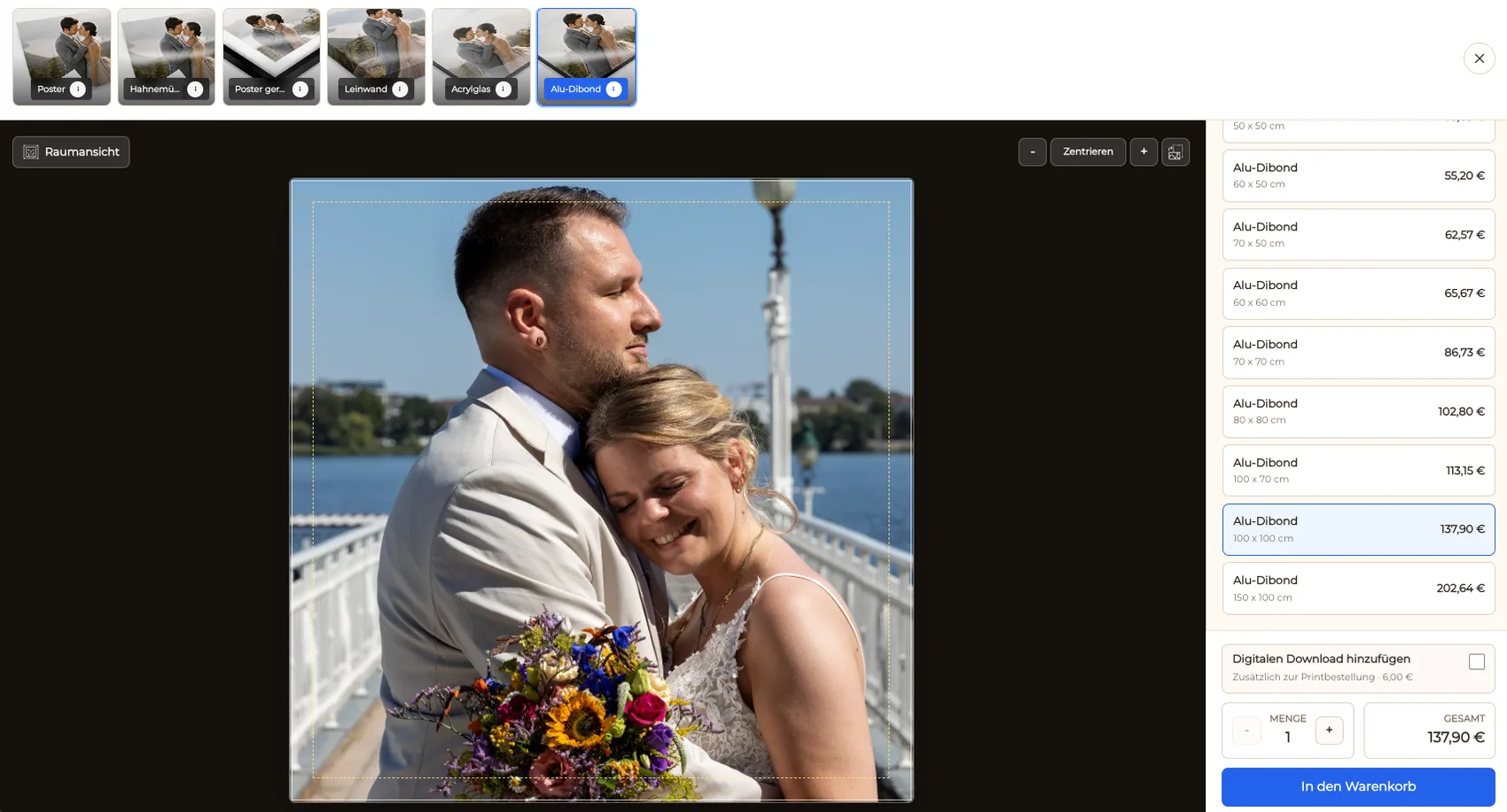
Compare the natural composition with available formats. Protect faces, hands, feet, instruments, edges, text, horizons, and intentional negative space instead of accepting an automatic crop without review.
Use the preview as a crop check
Inspect the visible print area and safe area at the selected size. A preview can expose edge problems, but it does not replace the exact dimensions and production specification tied to the order.
Give size a familiar context
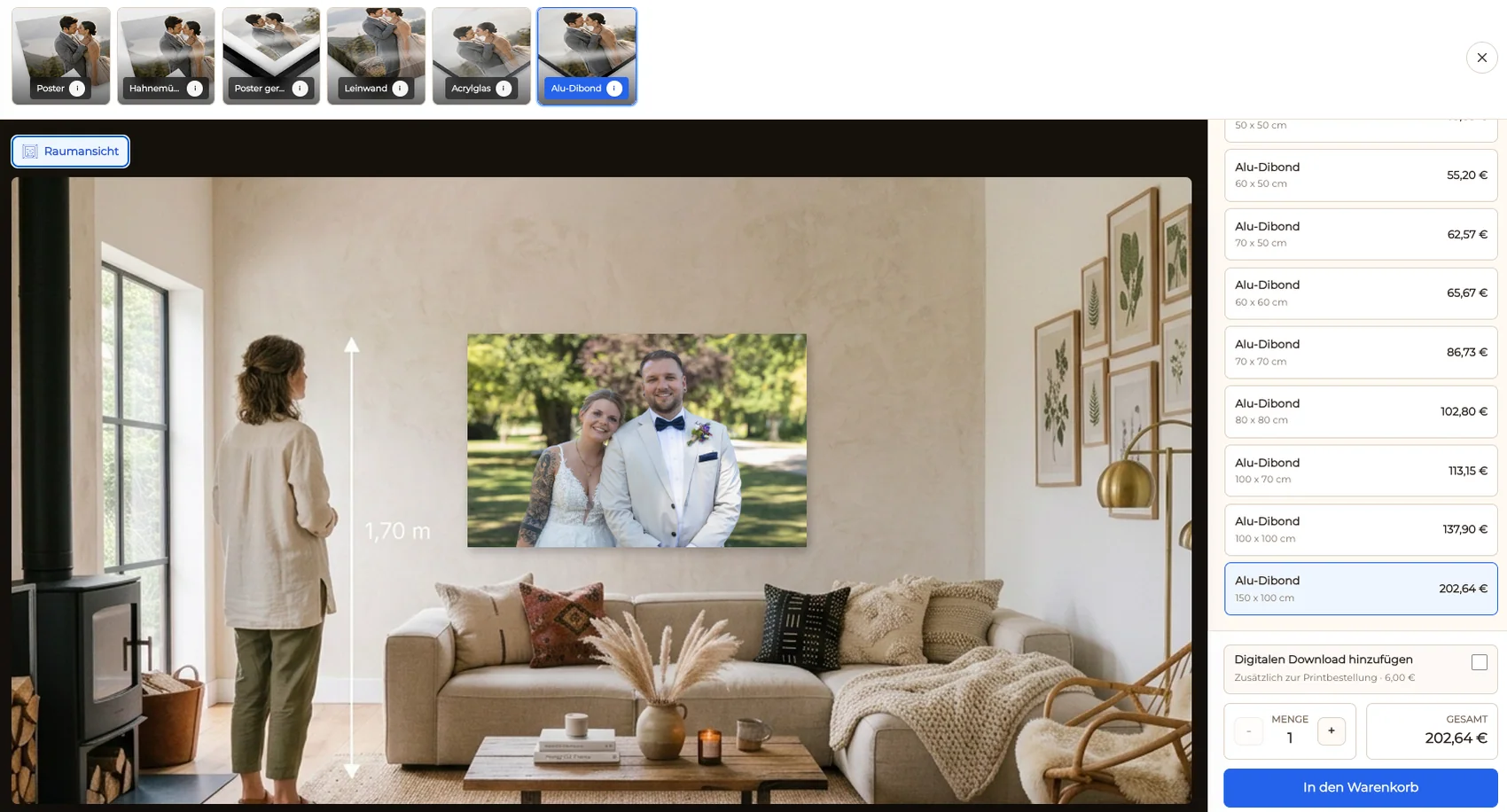
Room context can help a client discuss scale for wall products. Keep exact measurements visible because screen size, viewing distance, and device color cannot guarantee the final physical impression.
Explain price without hiding the product
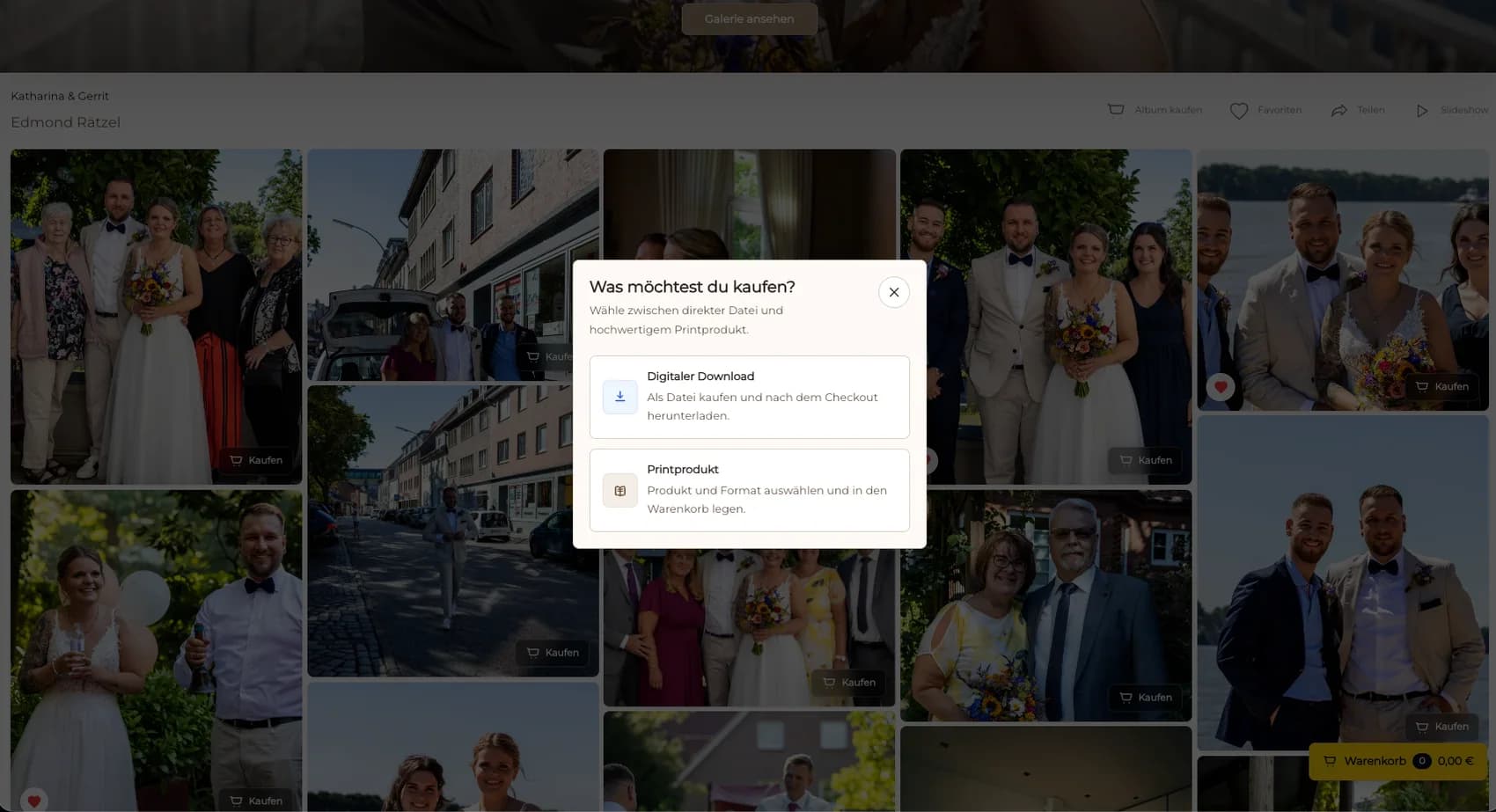
Show the selected product, size, quantity, and price together. If downloads are also available, describe them as a separate outcome so a file purchase is not confused with a physical print.
Order verification
Test the complete order path
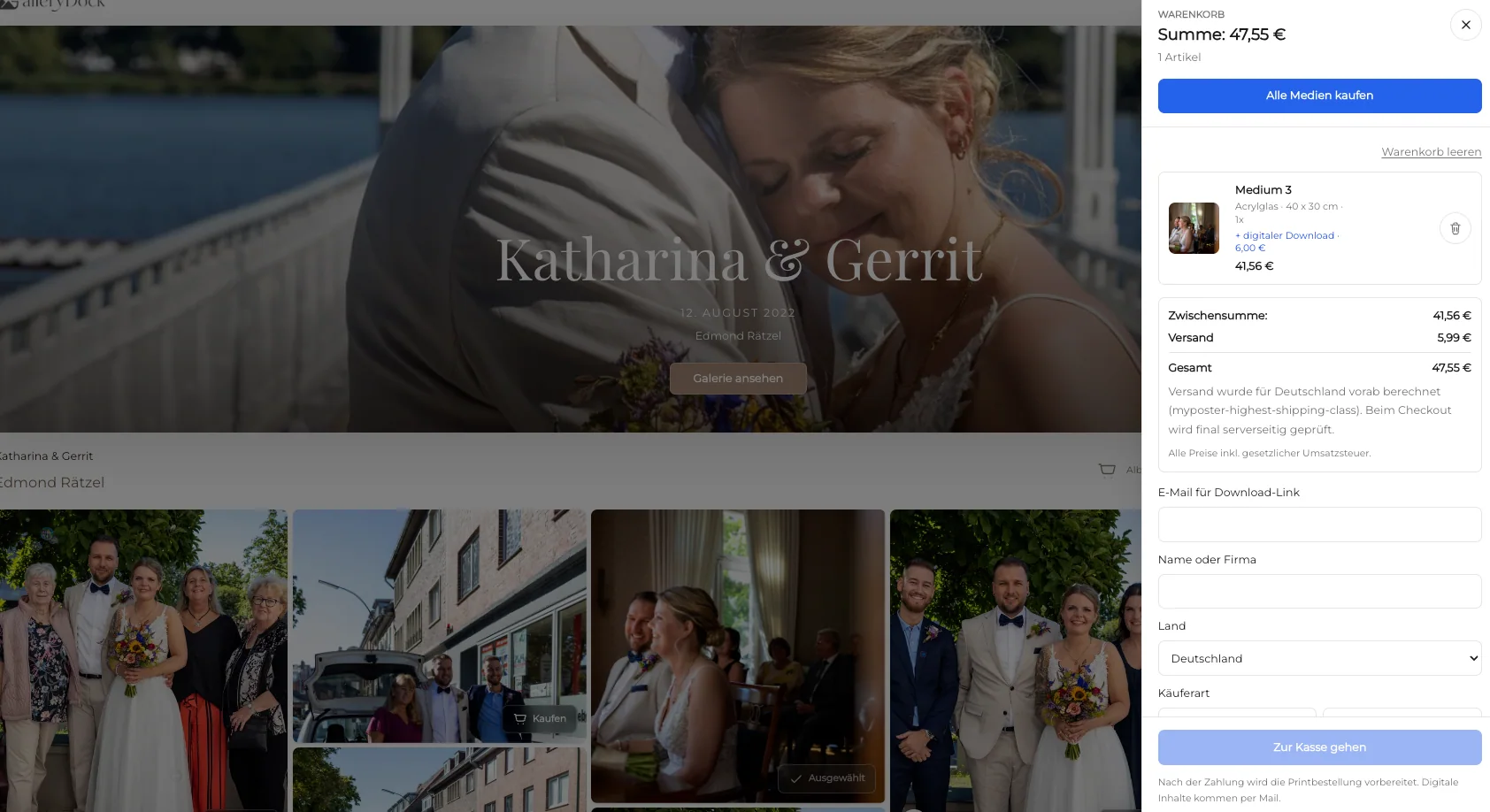
Treat checkout as the end of the client's selection and the beginning of order review. Verify the record before it becomes a production, delivery, or accounting task.
Test desktop and mobile
Open a representative gallery on desktop and mobile. Confirm that access, product names, sizes, prices, preview controls, cart actions, and checkout handoff remain readable without horizontal overflow.
Inspect the cart before launch
Verify that the intended photograph, product, dimensions, orientation, quantity, and price survive the transition into the cart. A polished gallery is not enough if order data becomes ambiguous.
Keep operational claims bounded
GalleryDock supports the configured gallery-to-order path, but this page does not promise a universal legal result, lab, automatic production route, packing method, shipping speed, tax decision, or sales outcome.
Review the order before production
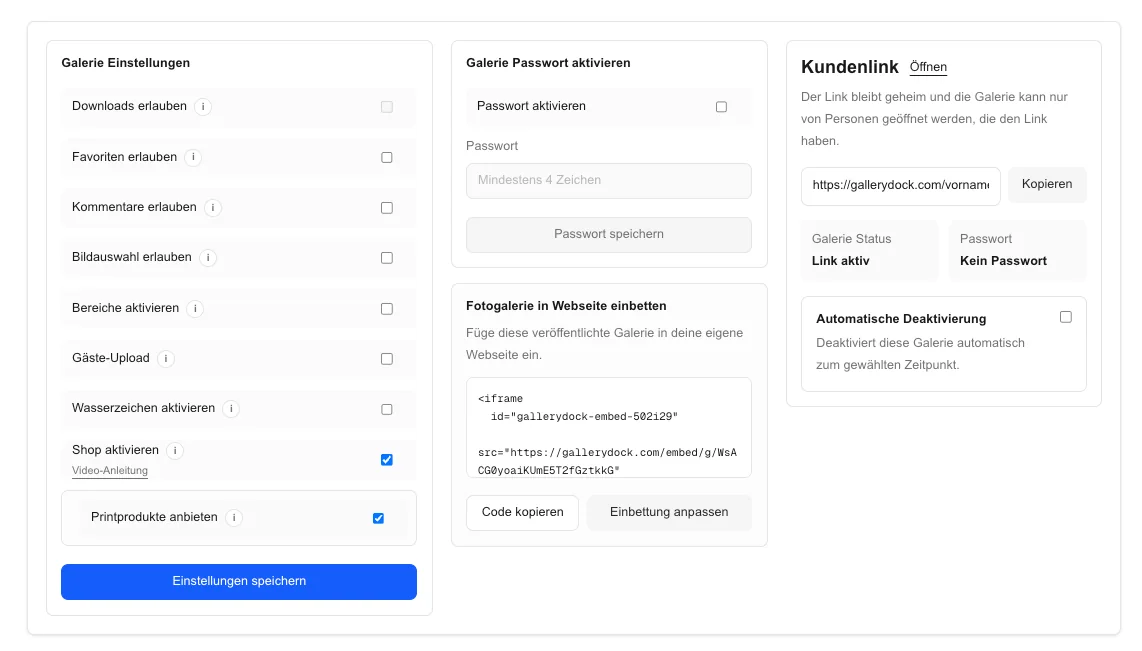
Check the generated embed code, Elementor HTML widget, container width, public URL, responsive layout, consent and cache behavior, image actions, configured products, crop, cart, and checkout handoff. Resolve an unclear crop, access question, payment option, or product specification before the order enters the photographer's chosen production and delivery workflow.
Photo print store settings before Elementor embeddingUse this photo print store settings before elementor embedding view to review the page-specific decision with the client before the order moves forward.Elementor print-store products sizes and pricesUse this elementor print-store products sizes and prices view to review the page-specific decision with the client before the order moves forward.Digital or physical product choice inside the embedded galleryUse this digital or physical product choice inside the embedded gallery view to review the page-specific decision with the client before the order moves forward.Print orientation inside the Elementor store pathUse this print orientation inside the elementor store path view to review the page-specific decision with the client before the order moves forward.Print crop and safe area in the embedded storeUse this print crop and safe area in the embedded store view to review the page-specific decision with the client before the order moves forward.Wall-art room preview inside the Elementor buying pathUse this wall-art room preview inside the elementor buying path view to review the page-specific decision with the client before the order moves forward.Embedded photo print store cart and checkoutUse this embedded photo print store cart and checkout view to review the page-specific decision with the client before the order moves forward.
Comparison
Compare Elementor photo print store choices before publishing
Compare the practical choices around Elementor photo print store. The useful option is the one that fits the finished photographs, buyer context, and exact configured path—not the option with the broadest promise.
Approach
Best for
Tradeoff
Gallery-only embed
Viewing and delivery
Store decision is not the focus
Print-store embed
Image-level buying
Products and checkout need testing
Dedicated store link
Simple external navigation
Leaves the page context
Custom WordPress build
Special requirements
Adds maintenance and code ownership
Portrait service page
Place a curated client gallery and print path below the service explanation.
Private client page
Combine instructions, intended access, and the embedded buying experience.
Fine-art landing page
Present a short product range beside the photographer's own editorial context.
Responsive store check
Verify the complete public path at desktop and mobile widths.
Frequently asked questions
Questions about this workflow
How do I place the store in Elementor?
Add Elementor's HTML widget to the intended container, paste the generated GalleryDock embed code, and publish through the normal WordPress workflow.
Do I need a GalleryDock Elementor plugin?
No dedicated GalleryDock Elementor plugin or addon is claimed for this workflow.
How is this different from a gallery-only embed?
This guide tests the configured product choice, crop, cart, and checkout path in addition to the embedded gallery presentation.
What should I test after publishing?
Use the public WordPress URL on desktop and mobile and verify width, image interaction, product selection, cart, checkout, consent, cache, and theme behavior.
Does the embed guarantee PageSpeed or theme compatibility?
No. Measure the complete published page and resolve WordPress, theme, cache, security, consent, and custom CSS issues in that environment.
Ideal for photographers who regularly deliver client galleries.
Unlimited galleries
200 GB storage
Photos & videos
Image upload: 100 MB
Video upload: 15 GB
Your own shop for digital sales
Sell print products in your shop
Only 10% shop fee per sale
Your own profile in client galleries
Password-protect client galleries
Use your own logo as a watermark
Let clients select images and mark favorites
Control photo and video downloads
Embed galleries on your own website
Hide GalleryDock branding
Use your own logo in galleries
For regular client delivery
Pro
Monthly
29 EUR
EUR 348 billed yearly. plus VAT
For photographers managing many projects, videos and growing storage.
Unlimited galleries
1 TB storage
Photos & videos
Image upload: 100 MB
Video upload: 30 GB
Your own shop for digital sales
Sell print products in your shop
Only 5% shop fee per sale
Your own profile in client galleries
Password-protect client galleries
Use your own logo as a watermark
Let clients select images and mark favorites
Control photo and video downloads
Embed galleries on your own website
Hide GalleryDock branding
Use your own logo in galleries
For regular client delivery
Test one Elementor photo print store path from image to cart
Choose one finished assignment, configure the relevant Elementor photo print store path, inspect every client-facing decision, and test the complete journey from gallery view to cart before publishing.