01
Identify the actual editor
Confirm whether the page uses the block editor, a builder, or a managed WordPress.com setup. The available HTML path can differ between them.
WordPress client gallery
Embed a GalleryDock client photo gallery in WordPress with a Custom HTML block, verified code permissions, and front-end desktop and mobile checks.
Quick answer
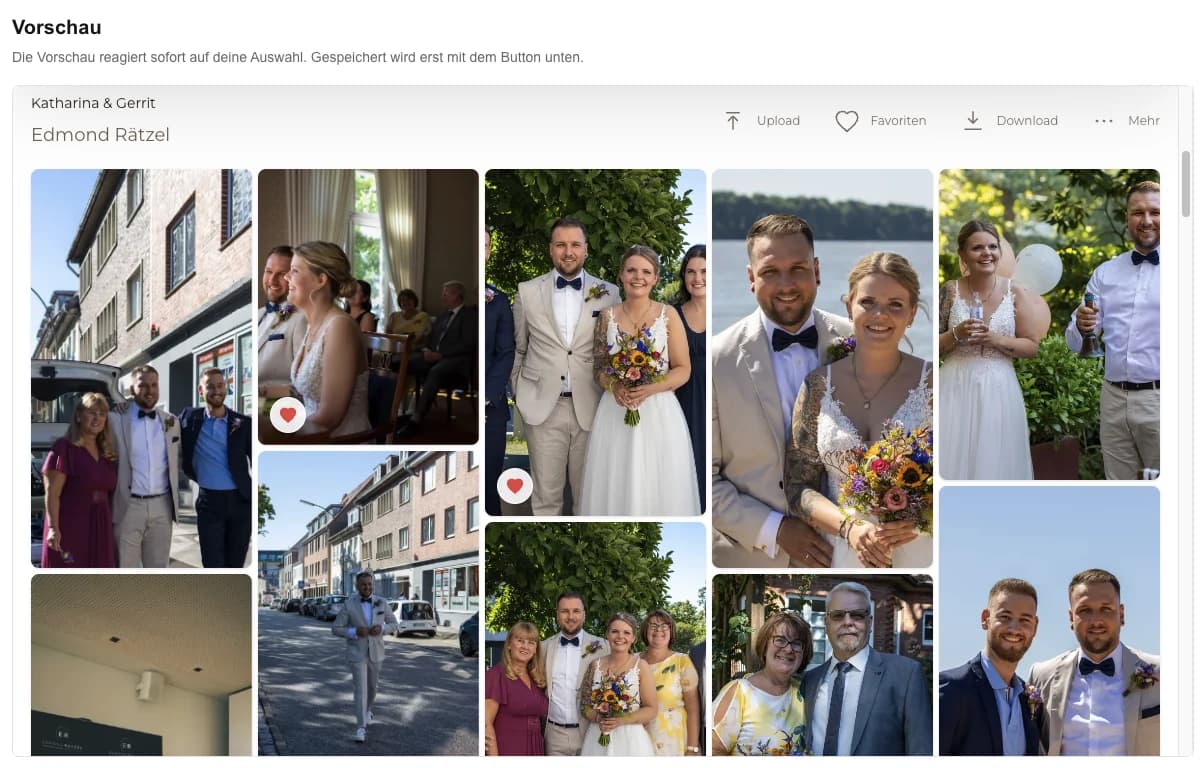
A client photo gallery in WordPress places the maintained GalleryDock experience inside an existing page through a permitted Custom HTML block. Start with one representative client project and decide what the visitor should understand, select, or buy before the page is assembled. GalleryDock maintains the gallery experience, contextual favorites and comments, controlled downloads, and digital or physical print sales when those options are configured. The website or shared link provides the surrounding entry, while the photographer remains responsible for the offer, access decisions, image suitability, product setup, and the published client check. Test the complete path on desktop and mobile instead of relying on an editor preview. This is not an Elementor tutorial, plugin ranking, theme rebuild, WooCommerce replacement, hosting-plan promise, or way around WordPress code filtering and administrator permissions.
Prepare
Check the site and user permissions before treating a pasted preview as complete.
01
Confirm whether the page uses the block editor, a builder, or a managed WordPress.com setup. The available HTML path can differ between them.
02
Verify that the current account and hosting plan permit the required Custom HTML. Do not promise that every WordPress configuration preserves embed code.
03
Set the images, access, downloads, feedback, and products in GalleryDock first so the copied embed represents the intended client experience.
04
Introduce the assignment and expected next action beside the embed. Keep detailed site copy from overwhelming the gallery workflow.
Embed
Keep WordPress responsible for the page and GalleryDock responsible for the gallery.
01
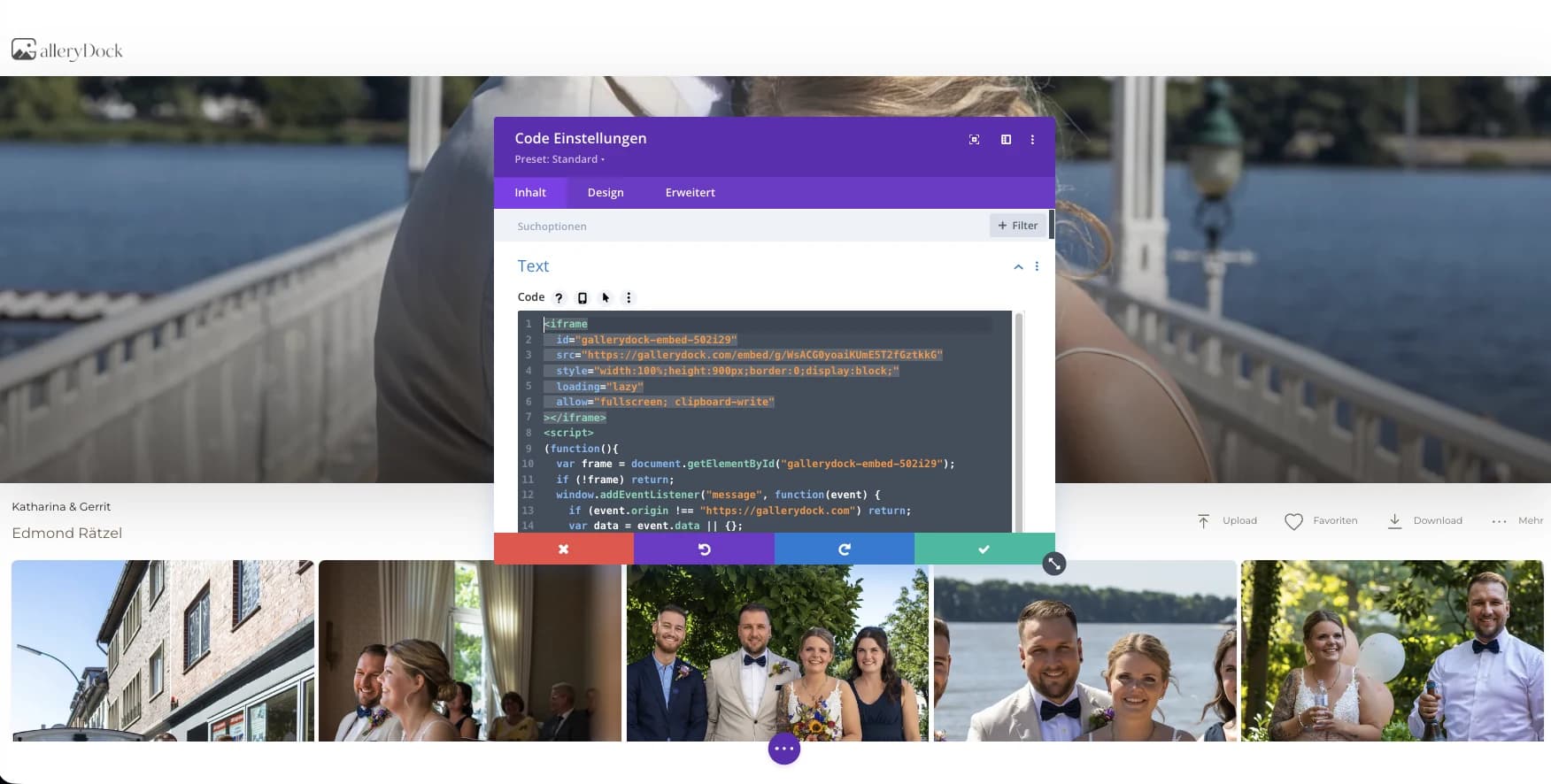
Add a Custom HTML block in the intended content area rather than pasting code into a paragraph, image caption, or unsupported widget.
02
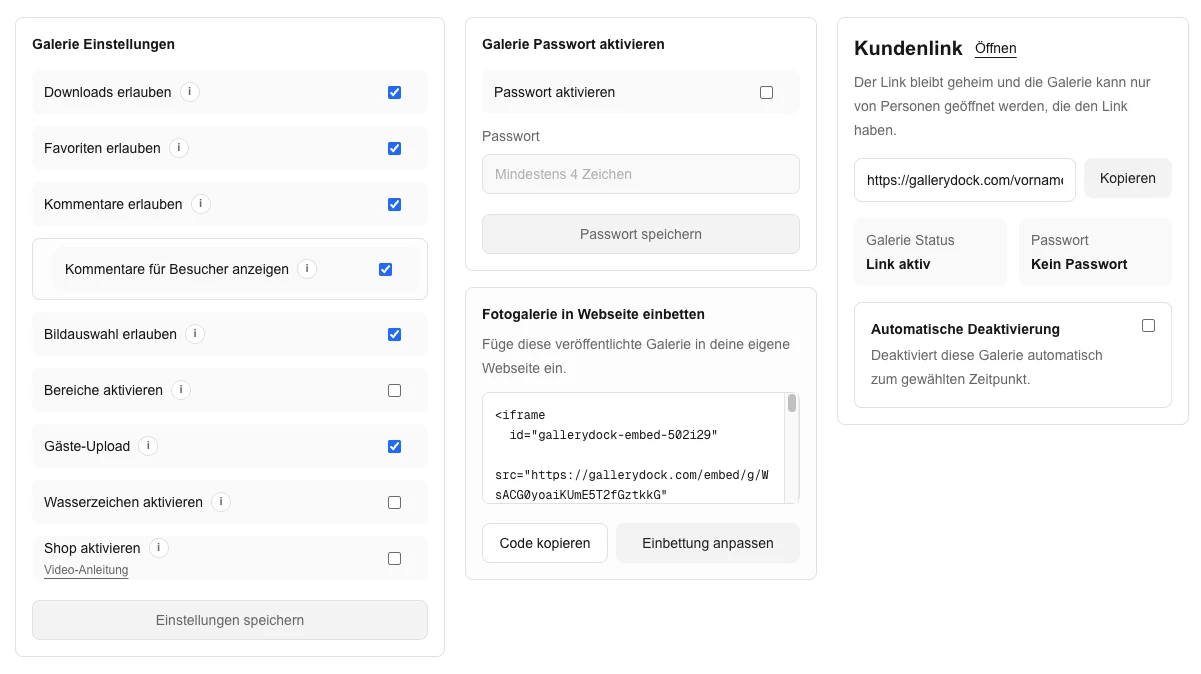
Use the complete current GalleryDock embed. Splitting attributes or wrapping it in theme-specific markup creates avoidable maintenance points.
03
Update the page, reopen the block, and confirm that WordPress did not remove required tags or attributes during sanitization.
04
Choose a full-width or sufficiently wide page area when the theme offers it, then verify the gallery remains readable at narrower widths.
Publish
A WordPress preview cannot establish what an anonymous client receives.
01
Open the updated page outside the editor and confirm the gallery loads instead of displaying code, an empty frame, or a permission message.
02
Use a representative image and each enabled action. Check that dialogs and checkout handoffs remain inside a usable viewport.
03
Review the page on a phone and check both the WordPress theme container and the embedded gallery for overflow or cramped controls.
04
If the embed disappears after saving, inspect role, host, block, and sanitization rules before changing GalleryDock or installing an unrelated plugin.
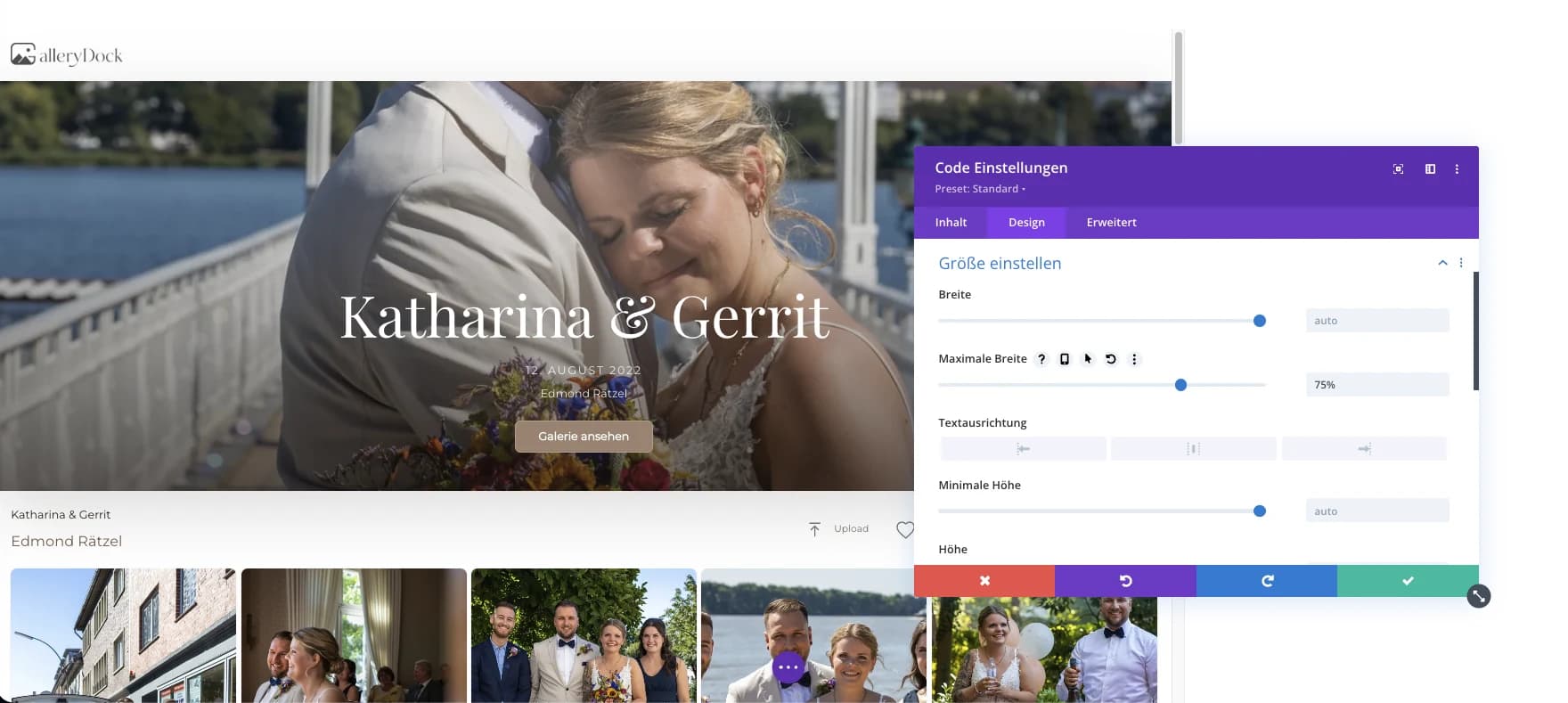
Comparison
The right method depends on whether you need a client workflow or only a visual image section.
| Approach | Best for | Tradeoff |
|---|---|---|
| GalleryDock in Custom HTML | Client galleries with maintained actions and products | Needs code permission and a front-end check |
| WordPress Gallery block | A simple native image grid | No connected GalleryDock client workflow |
| Gallery plugin | A WordPress-native feature set | Adds plugin updates and configuration ownership |
| Elementor HTML widget | A site already built with Elementor | Belongs to the separate Elementor workflow |
| Direct gallery link | Client access without an embedded page | The visitor leaves the WordPress context |
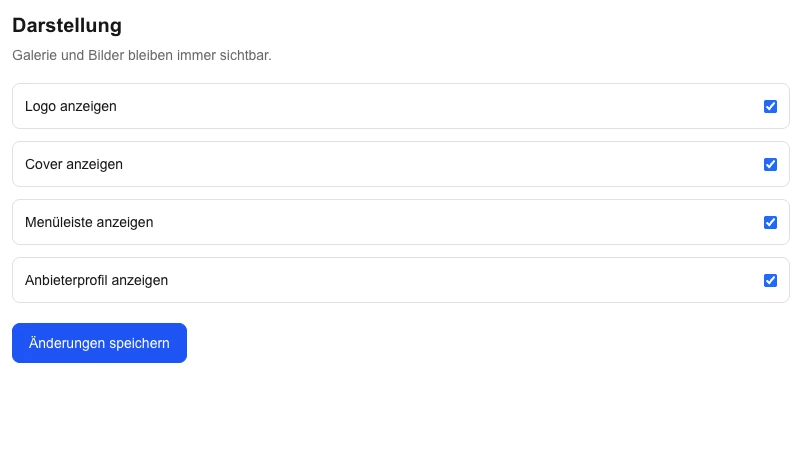
The photographer adds the gallery beneath a concise session introduction.
A stakeholder opens the maintained gallery inside an existing project page.
Configured digital and physical choices stay with the photographs while WordPress provides the brand context.
Frequently asked questions
Use a permitted Custom HTML block in the current editor and verify it on the front end.
Capabilities depend on the current plan, host, editor, role, and security configuration, so check the actual site.
Sanitization or insufficient permissions can strip tags or attributes; investigate that boundary before replacing the gallery.
Use an appropriate theme or block width and then inspect the published page at desktop and mobile sizes.
Gallery content remains managed in GalleryDock; replace the embed only when the generated integration itself changes.
Related resources
Pricing
Free forever
0 EUR
EUR 0 per month
Perfect for sharing your first galleries professionally.
Start free, no credit card required
Monthly
19 EUR
EUR 228 billed yearly. plus VAT
Ideal for photographers who regularly deliver client galleries.
For regular client delivery
Monthly
29 EUR
EUR 348 billed yearly. plus VAT
For photographers managing many projects, videos and growing storage.
For regular client delivery
Confirm the site's HTML permission, place the complete embed in the right block, and test the saved page as an anonymous client.
Create a free account