Add a GalleryDock photo gallery to Notion with a supported Embed block or clear gallery-link fallback, deliberate sizing, and public desktop and mobile checks.
A Notion photo gallery placement gives a project page, client space, or moodboard a maintained visual destination without rebuilding the gallery as a Notion database. The practical result is a clear Notion page where collaborators can open the prepared client gallery through a supported embed or dependable gallery link. Start with one representative gallery, prepare only the media and actions the intended audience should see, and define the next step before publishing. GalleryDock provides the client-facing gallery, contextual favorites and feedback, controlled downloads, and—when configured—digital sales and physical print sales. The website owner chooses where the gallery appears and remains responsible for the surrounding page, access decisions, platform permissions, publishing, and testing. Check the public experience on desktop and mobile rather than treating an editor preview as proof. This is not a Notion database gallery, template, API, automation, or Custom HTML tutorial, and it does not guarantee that Notion will load every external destination in every workspace or client.
Prepare
Define the job before building notion photo gallery embed
A website placement is the presentation layer of a client workflow. The gallery, audience, permissions, destination page, and intended next action should be clear before any code or link is placed.
01
Choose one audience and outcome
A Notion photo gallery placement gives a project page, client space, or moodboard a maintained visual destination without rebuilding the gallery as a Notion database. Write down who opens the page and whether the next step is viewing, selection, feedback, download, a digital purchase, a physical print purchase, or another business action.
02
Prepare the gallery first
Review image order, names, visible controls, download permissions, optional password access, products, prices, and crops. Expose only the choices that belong to this use case.
03
Select a stable destination
Use the intended published page or template and confirm that its editor permits the required URL, HTML, or embed element. Keep a clear owner for later page and gallery updates.
04
Give the gallery enough room
Choose a practical container width, keep surrounding copy concise, and avoid competing controls immediately beside the gallery. Explain why the gallery is present and what visitors should do next.
Publish
Place the gallery with a controlled handoff
Paste the supported GalleryDock URL into a Notion Embed block, confirm that the service loads it, resize the block deliberately, and use a clearly labeled gallery link or bookmark when embedding is unavailable. Work from the prepared GalleryDock destination and the website's documented content area instead of inventing a parallel integration.
01
Preview the public gallery
Open the GalleryDock view without owner authentication. Confirm the gallery itself is ready before troubleshooting the page builder, CMS, code boundary, or surrounding layout.
02
Use the supported handoff
Use the current generated code or supported gallery URL and keep it intact. Avoid undocumented scripts, copied third-party assets, or wrappers that create another maintenance surface.
03
Publish through the normal workflow
Paste the supported GalleryDock URL into a Notion Embed block, confirm that the service loads it, resize the block deliberately, and use a clearly labeled gallery link or bookmark when embedding is unavailable. Save or publish through the website's normal process, then inspect the real URL rather than relying only on an editor canvas.
04
Keep client actions distinct
The target is a clear Notion page where collaborators can open the prepared client gallery through a supported embed or dependable gallery link. Make favorites, comments, downloads, digital products, physical print products, and external actions visibly separate so visitors understand what each control does.
Verify
Test the live result and its boundaries
Open the shared Notion page with the same permissions as the intended audience and confirm the embed or fallback works outside the editor session. A successful placement is only one part of the evidence; the complete client-facing path must remain usable, understandable, and product-truthful.
01
Check desktop and mobile
Verify readable text, usable controls, stable media, the intended maximum width, and no horizontal overflow at the public URL. Test the same access state a client or visitor receives.
02
Exercise every enabled action
Open images, test a representative favorite or comment where appropriate, verify downloads, inspect configured products and crops, and confirm the checkout handoff without completing a purchase.
03
Separate product facts from platform behavior
This is not a Notion database gallery, template, API, automation, or Custom HTML tutorial, and it does not guarantee that Notion will load every external destination in every workspace or client. Describe only the tested workflow and do not turn a layout, permission, cache, plan, or publishing condition into a guarantee.
04
Document the update owner
Record which GalleryDock gallery feeds the page, where the code or link lives, who can publish website changes, and how the public result is checked after content, access, product, or layout updates.
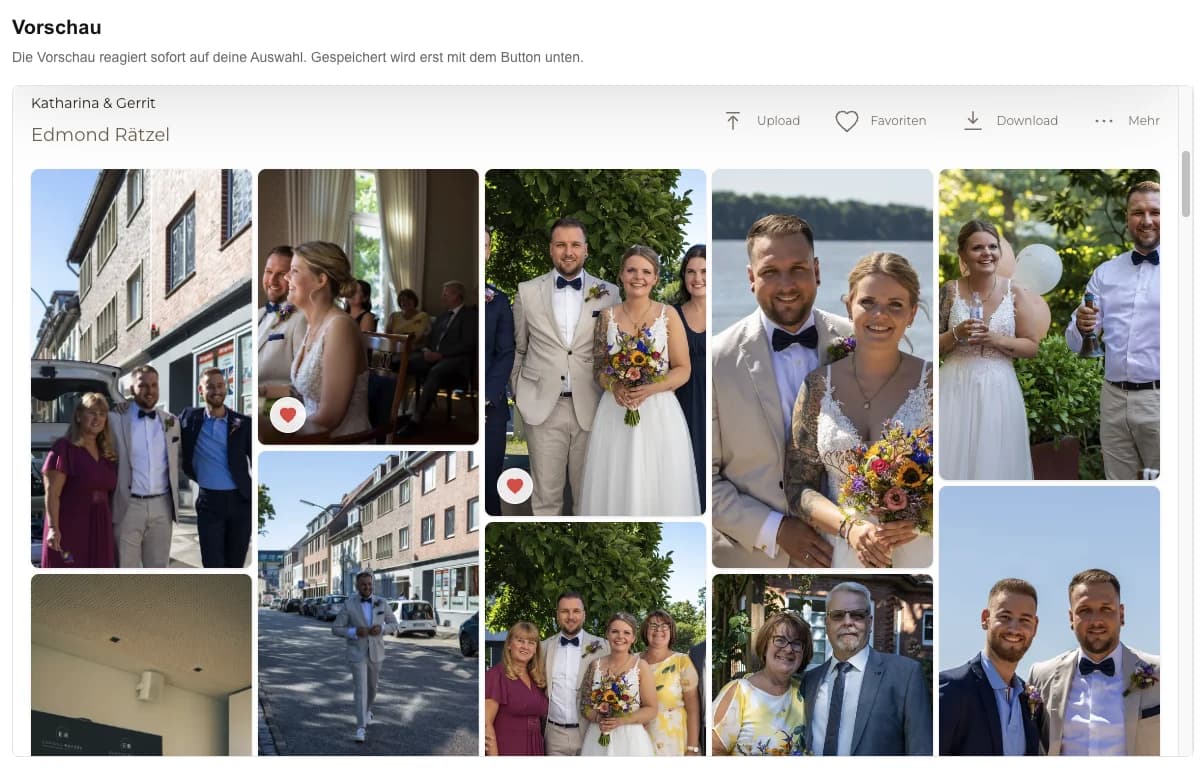
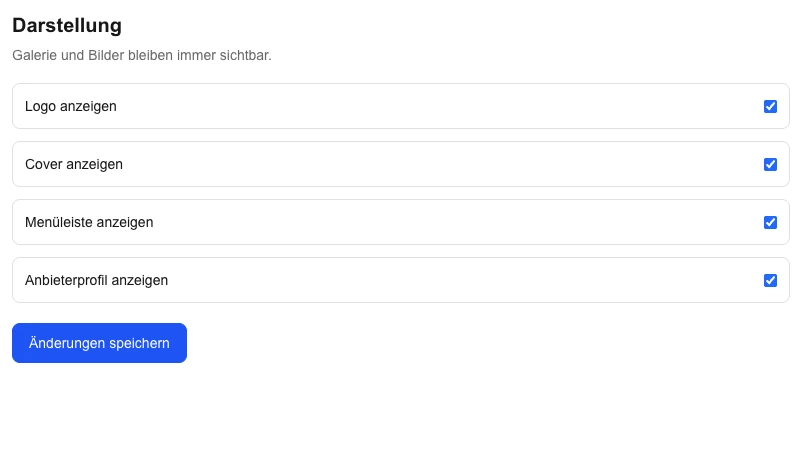
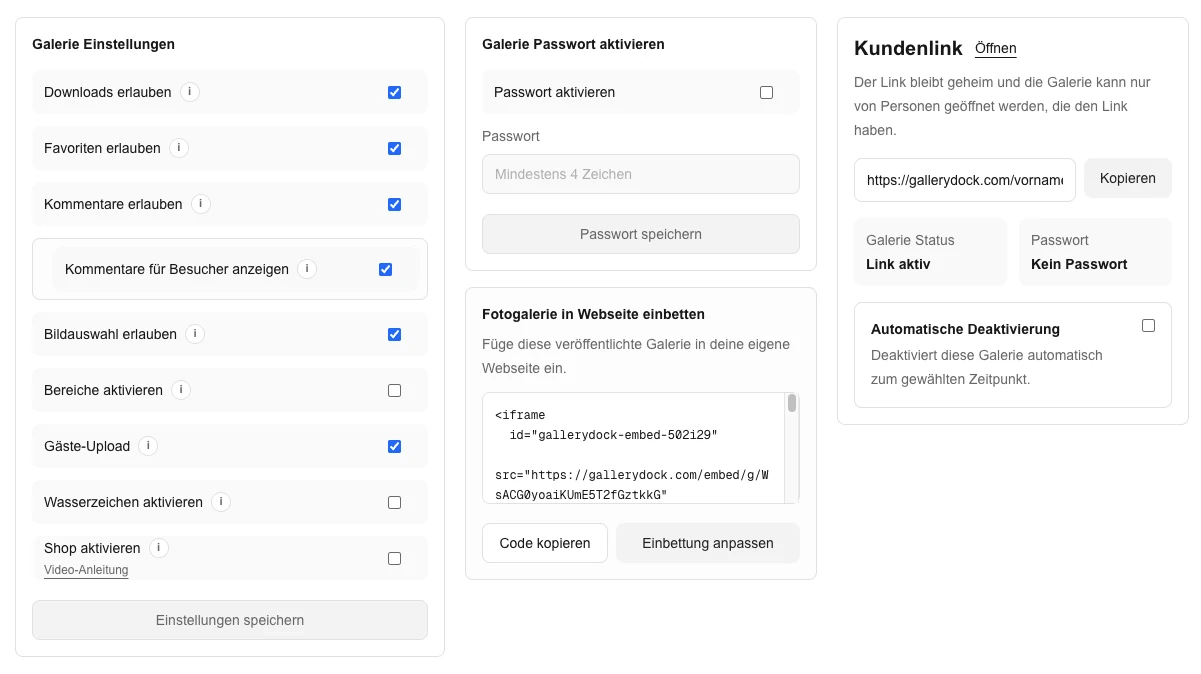
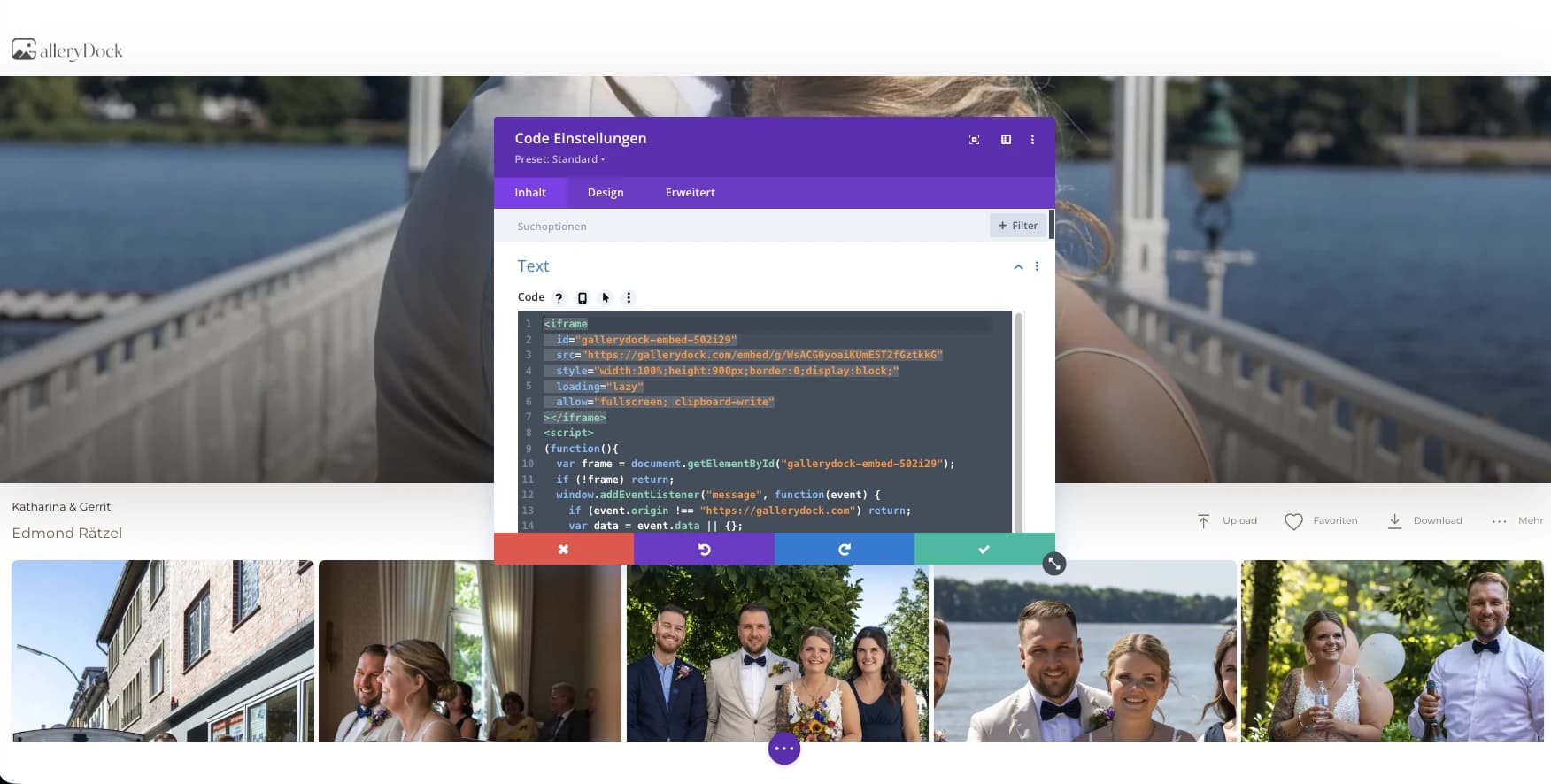
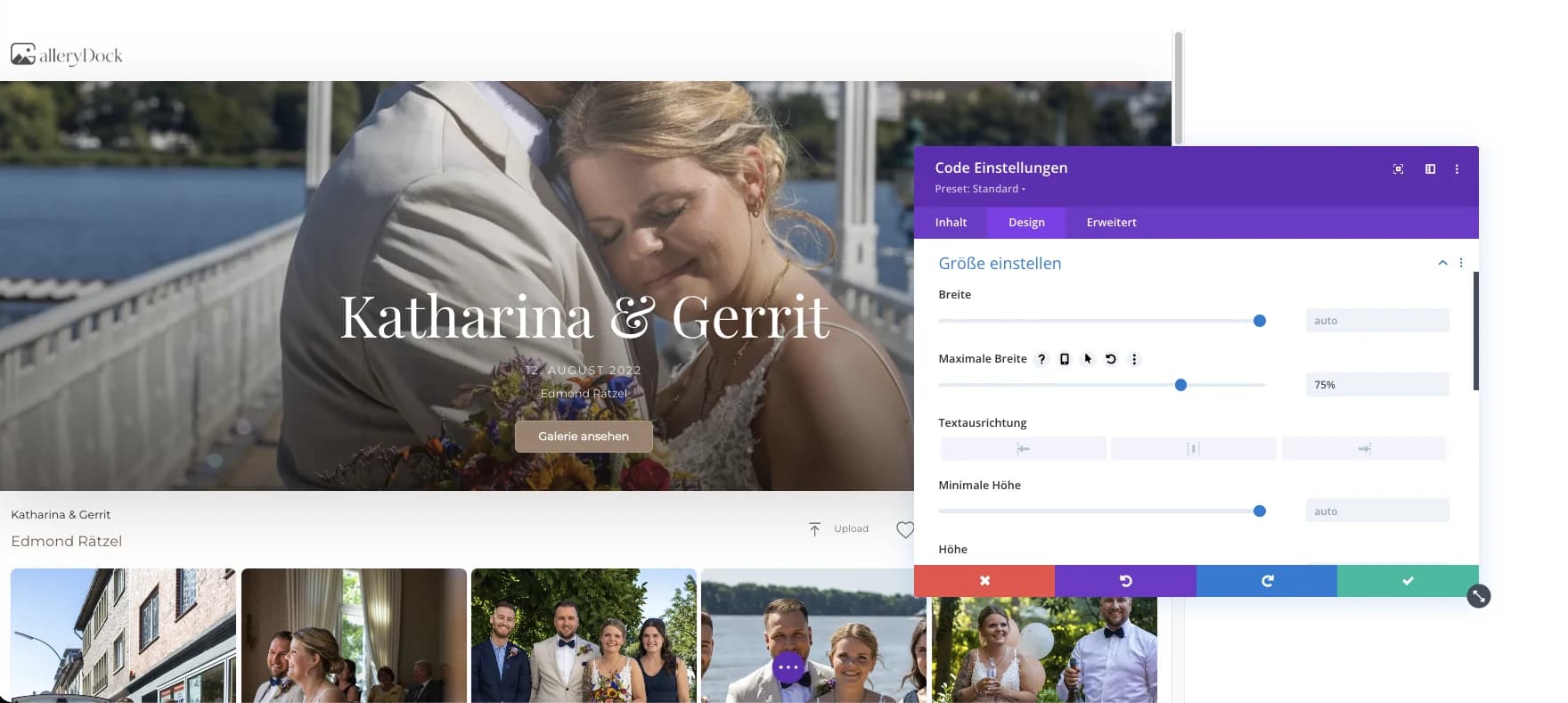
Choose the gallery presentationChoose the gallery presentation is shown with the existing product view from the German source guide.Copy the supported gallery URLCopy the supported gallery URL is shown with the existing product view from the German source guide.Place the URL in a Notion Embed blockPlace the URL in a Notion Embed block is shown with the existing product view from the German source guide.Verify the published Notion widthVerify the published Notion width is shown with the existing product view from the German source guide.
Comparison
Choose the right approach for notion photo gallery embed
Match the delivery method to the audience and maintenance responsibility instead of forcing every project through the same type of website component.
Approach
Best for
Tradeoff
GalleryDock client gallery on the website
a clear Notion page where collaborators can open the prepared client gallery through a supported embed or dependable gallery link
Requires a tested destination page and deliberate gallery setup
Direct GalleryDock link
A focused handoff without surrounding website content
Does not place the experience inside the business website
Generic cloud folder
Straightforward file storage or transfer
Folder structure does not create a curated client workflow
Native website image block
A small editorial image set maintained in the website
Updates and client actions remain separate from GalleryDock
Custom website integration
Requirements beyond the supported GalleryDock handoff
Adds development, security, testing, and maintenance ownership
Client project page
A photographer places the current gallery beside briefs and delivery notes without duplicating the image library in Notion.
Creative moodboard
A team keeps references and decisions in Notion while GalleryDock remains the maintained gallery destination.
Link fallback
When Notion shows Failed to Load, a descriptive link still gives the client a reliable route to the gallery.
Frequently asked questions
Questions about this workflow
Can I embed a GalleryDock photo gallery in Notion?
Use Notion's supported Embed block with the GalleryDock destination and verify the shared page; availability can depend on Notion's handling of the URL.
What if Notion says Failed to Load?
Use a clear gallery link or bookmark rather than bypassing Notion's restrictions.
Is this a Notion database gallery?
No. GalleryDock remains the client-gallery workflow; Notion supplies the surrounding project page.
Can I resize the gallery?
Resize the Notion block deliberately and inspect the shared result on desktop and mobile.
Do I need custom HTML?
No Custom HTML workflow is claimed for this page; use supported Notion blocks or a link fallback.
Ideal for photographers who regularly deliver client galleries.
Unlimited galleries
200 GB storage
Photos & videos
Image upload: 100 MB
Video upload: 15 GB
Your own shop for digital sales
Sell print products in your shop
Only 10% shop fee per sale
Your own profile in client galleries
Password-protect client galleries
Use your own logo as a watermark
Let clients select images and mark favorites
Control photo and video downloads
Embed galleries on your own website
Hide GalleryDock branding
Use your own logo in galleries
For regular client delivery
Pro
Monthly
29 EUR
EUR 348 billed yearly. plus VAT
For photographers managing many projects, videos and growing storage.
Unlimited galleries
1 TB storage
Photos & videos
Image upload: 100 MB
Video upload: 30 GB
Your own shop for digital sales
Sell print products in your shop
Only 5% shop fee per sale
Your own profile in client galleries
Password-protect client galleries
Use your own logo as a watermark
Let clients select images and mark favorites
Control photo and video downloads
Embed galleries on your own website
Hide GalleryDock branding
Use your own logo in galleries
For regular client delivery
Build a clearer notion photo gallery embed workflow
Prepare one real gallery, place it on the intended page, and test the public result from start to finish. The goal is a clear Notion page where collaborators can open the prepared client gallery through a supported embed or dependable gallery link. GalleryDock supports the gallery and commerce path without replacing website administration, professional judgment, or third-party platform responsibility.